ASUS ProArt Studiobook 16 GPU Switching Issue Fix
ASUS ProArt Studiobook 16 OLED · Core Ultra 9 185H · NVIDIA RTX 4070 · Windows 11
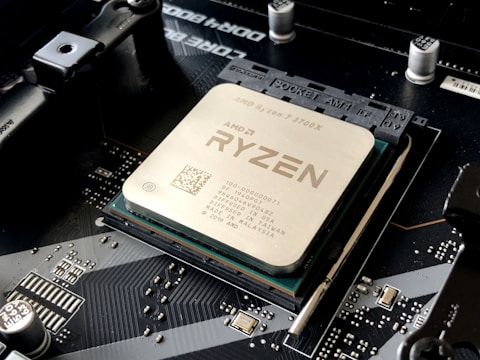
Clean reinstall both GPU drivers with DDU
Download Display Driver Uninstaller (DDU) and run it in Safe Mode. Remove all GPU drivers. After reboot, install the latest NVIDIA RTX 4070 driver from NVIDIA directly, then install the latest Intel Arc driver from ASUS Support. Install them in this order to avoid Optimus configuration conflicts.
Enable the MUX switch in MyASUS
Open the MyASUS app and navigate to Customization. Find the MUX switch or GPU mode setting and enable it to run in dGPU mode. This routes all display output directly through the NVIDIA RTX 4070, bypassing the Intel iGPU handoff that causes rendering glitches and performance drops.

Set application GPU preference in Windows
Go to Settings → System → Display → Graphics. Find your creative application (Premiere Pro, DaVinci Resolve, Blender) and set GPU preference to High performance. This forces the app to use the NVIDIA RTX 4070 regardless of the Optimus mode configured system-wide.
Update the BIOS
Download the latest BIOS for the ProArt Studiobook 16 from ASUS Support. ASUS ships frequent BIOS updates for this model that improve GPU switching stability between the Intel Arc and NVIDIA RTX, and can fix black screen flashes that occur during Optimus context switches.
Disable hardware-accelerated GPU scheduling if causing issues
Go to Settings → System → Display → Graphics → Default graphics settings. Toggle Hardware-accelerated GPU scheduling off. On some dual-GPU configurations this feature can cause the rendering pipeline to switch GPUs unexpectedly mid-frame, resulting in stuttering or visual corruption.
Use NVIDIA Control Panel to assign GPU globally
Open NVIDIA Control Panel → Manage 3D Settings → Global Settings. Set Preferred graphics processor to High-performance NVIDIA processor. This prevents the Optimus system from downgrading rendering to the Intel iGPU for any application that does not have an explicit GPU assignment.
Razif, Kuala Lumpur: “DaVinci Resolve kept falling back to the Intel GPU on my ProArt Studiobook. Setting the app to High performance in Windows Graphics settings and enabling the MUX switch fixed the GPU switching issue completely.”
Frequently Asked Questions
Why does the ASUS ProArt Studiobook 16 switch to the Intel GPU in creative apps?
NVIDIA Optimus selects the integrated GPU for applications it considers low-power tasks. For creative apps that are not on the NVIDIA whitelist, manually set the GPU preference to High performance in Windows Graphics settings or in NVIDIA Control Panel per-app 3D settings.
What is the MUX switch and should I enable it on the ProArt Studiobook?
The MUX switch bypasses the Optimus GPU sharing and connects the display directly to the NVIDIA GPU. For professional creative workloads, enabling the MUX switch is recommended as it eliminates iGPU-to-dGPU handoff latency and visual artifacts. It requires a reboot to apply.
Does enabling the MUX switch reduce battery life?
Yes. Running exclusively on the NVIDIA RTX 4070 consumes more power than Optimus hybrid mode. For light work on battery, consider switching back to hybrid mode in MyASUS to extend runtime.
Can I use CUDA in DaVinci Resolve on the ProArt Studiobook 16?
Yes. With the NVIDIA driver installed and GPU preference set to High performance, DaVinci Resolve will use CUDA on the RTX 4070 for GPU-accelerated rendering and effects. Set the GPU in DaVinci Resolve Preferences to CUDA and select the RTX device explicitly.
Ryan holds a Computer Science degree and has over 20 years of hands-on experience with PC hardware, software, and driver troubleshooting. He is the author behind softwaredriverdownload.com, where he helps everyday users fix driver issues quickly and accurately. Ryan has personally tested most of the fixes on this site across a range of Windows 10 and Windows 11 machines.
Leave a Reply