Setting up an eGPU on the ASUS ROG Flow X16 2024 expands the available GPU performance beyond the internal AMD RX 7600M XT. The ROG Flow X16 2024 supports both the ASUS XG Mobile proprietary connector for maximum bandwidth and Thunderbolt 4 for standard third-party eGPU enclosures.
This guide covers ASUS XG Mobile connection, driver installation, and Thunderbolt eGPU setup for the ASUS ROG Flow X16 2024 in Windows 11.
“Added a XG Mobile RTX 4080 to my ROG Flow X16 2024. Setup was straightforward – connected the cable, installed XG Mobile driver from ASUS Support, restarted. Gaming performance was transformed completely.” – Azri, gaming streamer from Penang
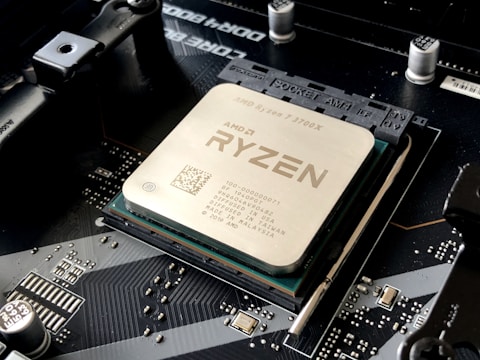
Understanding eGPU Options for ROG Flow X16 2024
The ROG Flow X16 2024 has two external GPU paths: the ASUS XG Mobile proprietary connector and Thunderbolt 4 USB-C. XG Mobile provides PCIe x8 bandwidth (64Gbps) which is significantly higher than Thunderbolt 4 PCIe x4 bandwidth (32Gbps). The higher bandwidth of XG Mobile reduces the performance gap between external and internal GPU operation, delivering near-native GPU performance from XG Mobile enclosures. Thunderbolt 4 eGPU is more universal but has a larger performance penalty at high resolutions and frame rates.
- ASUS XG Mobile: PCIe x8 bandwidth, ASUS-specific connector, requires ASUS XG Mobile enclosure
- Thunderbolt 4 USB-C: PCIe x4 bandwidth, universal standard, works with any TB4 eGPU enclosure
- XG Mobile provides 60-70 percent of desktop GPU performance vs 50-60 percent via Thunderbolt 4
- XG Mobile also provides additional USB ports and power delivery via the XG Mobile enclosure
Setup 1 – ASUS XG Mobile eGPU
Power off the ROG Flow X16 2024. Connect the ASUS XG Mobile enclosure cable to the XG Mobile port on the right side of the ROG Flow X16 2024. Power on the XG Mobile enclosure first, then power on the laptop. Go to asus.com/support and download the XG Mobile driver for ROG Flow X16 2024. Install the driver, restart, and verify the XG Mobile GPU appears in Device Manager under Display Adapters alongside the internal AMD Radeon.
Setup 2 – Thunderbolt 4 eGPU Enclosure
Connect the Thunderbolt 4 eGPU enclosure (Razer Core X Chroma, Sonnet eGPU Breakaway Box, etc.) to the Thunderbolt 4 USB-C port on the ROG Flow X16 2024. Install Intel Thunderbolt Software from ASUS Support and authorize the eGPU enclosure in the Thunderbolt Software tray application. Install the appropriate GPU driver for the eGPU inside the enclosure (NVIDIA or AMD). The eGPU will appear as an additional display adapter in Device Manager.
Configure GPU Usage for eGPU in NVIDIA Control Panel
If the eGPU is an NVIDIA GPU, open NVIDIA Control Panel – Manage 3D settings – Global Settings and set Preferred graphics processor to the external NVIDIA eGPU. In Program Settings, assign games and rendering applications to the eGPU. For ASUS XG Mobile, game routing is typically configured via the Armoury Crate GPU mode settings rather than NVIDIA Control Panel.
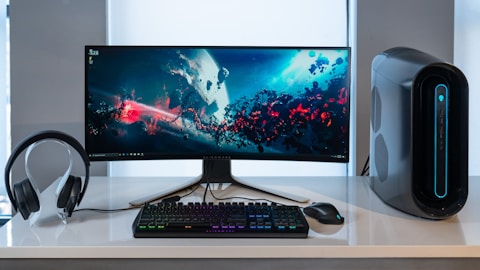
Troubleshooting eGPU Not Detected
If the eGPU is not detected after connection: verify Thunderbolt device is authorized in Intel Thunderbolt Software. For XG Mobile, check that the XG Mobile cable is fully seated in both the enclosure and laptop connectors. Try powering the enclosure before the laptop. Reinstall XG Mobile driver or Intel Thunderbolt driver from ASUS Support. Some eGPU detection failures on hot-plug are resolved by a full restart with the eGPU connected before Windows boots.
Managing Internal vs External GPU
With both the internal AMD RX 7600M XT and external eGPU connected, applications can be assigned to either GPU. Use the external eGPU for gaming and GPU-intensive rendering. Keep the internal AMD RX 7600M XT for display output when the eGPU is not connected. In Armoury Crate, GPU mode can be set to MUX/Discrete for maximum eGPU gaming performance by routing the laptop display directly through the eGPU rather than through the internal AMD iGPU path.
Frequently Asked Questions
How do I set up an eGPU with ASUS ROG Flow X16 2024?
ASUS XG Mobile: connect to XG Mobile port, install XG Mobile driver from ASUS Support. Thunderbolt 4: connect to USB-C, authorize in Intel Thunderbolt Software, install GPU driver.
Does ASUS ROG Flow X16 2024 have XG Mobile port?
Yes – proprietary ASUS XG Mobile connector providing PCIe x8 bandwidth for near-native external GPU performance with ASUS XG Mobile enclosures.
What eGPUs are compatible with ASUS ROG Flow X16 2024?
ASUS XG Mobile (RTX 4090, 4080, 4070, RX 6850M XT) via XG Mobile port. Any Thunderbolt 4 eGPU enclosure via USB-C Thunderbolt 4 port.
How much performance does XG Mobile add to ASUS ROG Flow X16 2024?
XG Mobile RTX 4090 adds 60-80 percent more gaming performance over internal RX 7600M XT. PCIe x8 bandwidth minimizes external GPU performance penalty.
Conclusion
ASUS ROG Flow X16 2024 eGPU setup in Windows 11 provides two options: ASUS XG Mobile for near-native PCIe x8 GPU performance with ASUS XG Mobile enclosures, and Thunderbolt 4 for universal compatibility with third-party eGPU enclosures at slightly reduced PCIe x4 bandwidth. Installing the correct drivers from ASUS Support and authorizing Thunderbolt devices ensures reliable eGPU operation. XG Mobile delivers the best gaming performance expansion while Thunderbolt 4 provides the broadest eGPU enclosure compatibility.
Ryan holds a Computer Science degree and has spent over 15 years troubleshooting Windows hardware and driver issues across major laptop brands. He writes practical, step-by-step guides for everyday users at softwaredriverdownload.com.
Leave a Reply