The ASUS ROG Flow X16 is a convertible gaming laptop with a fingerprint reader built into the power button for Windows Hello biometric login. When the fingerprint scanner stops working on Windows 11, fast biometric access is lost and the login process becomes slower. This guide covers every cause and fix for fingerprint reader failures on the Flow X16.
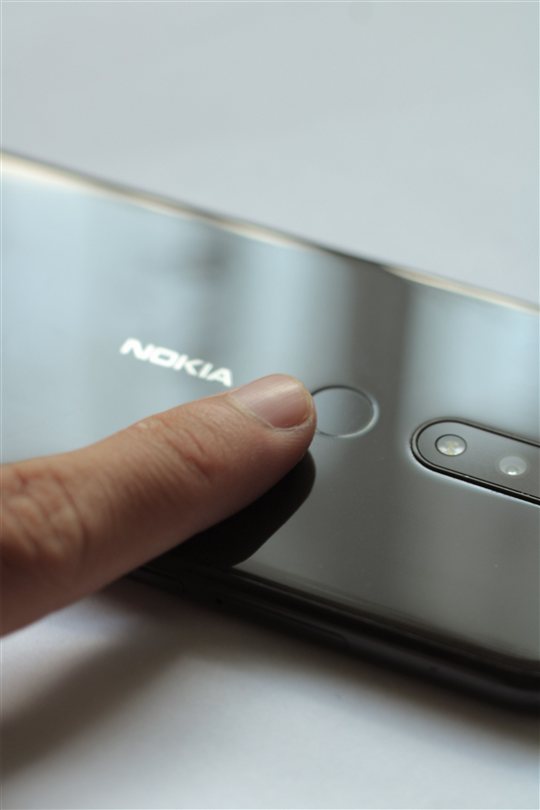
Why ASUS ROG Flow X16 Fingerprint Scanner Is Not Working
Goodix Fingerprint Driver Missing or Incompatible Version
The ASUS ROG Flow X16 uses a Goodix fingerprint sensor integrated into the power button. Windows Update occasionally replaces the ASUS-validated Goodix driver with a generic HID biometric driver that is incompatible with the Flow X16 sensor. When this happens, the fingerprint reader appears in Device Manager but fails to respond to touch input and Windows Hello fingerprint enrollment becomes unavailable. Reinstalling the ASUS-provided Goodix driver resolves this immediately.
Power Button Function Conflict After Windows Update
The fingerprint scanner shares hardware resources with the power button on the Flow X16. When a Windows update modifies power button drivers or firmware settings, the fingerprint scanning function can enter a conflict state where the power button works for sleep and wake but the fingerprint sensor does not respond. Signs of this issue include:
- Power button works normally for sleep and wake functions
- Fingerprint sensor produces no response when touched
- Windows Hello fingerprint enrollment shows device unavailable
- Issue began immediately after a Windows 11 cumulative update
- Other Goodix-based fingerprint readers on different laptops work correctly
ASUS Control Center Function Blocking Fingerprint
The ASUS ROG Flow X16 ships with ASUS Control Center, which manages power button behavior, keyboard profiles, and system settings. A corrupted or outdated Control Center installation can disable the fingerprint sensor even though all drivers are installed and functional. Updating or reinstalling ASUS Control Center restores fingerprint functionality in most cases where drivers appear correct.
How to Fix ASUS ROG Flow X16 Fingerprint Scanner Not Working
Step 1: Reinstall Goodix Fingerprint Driver from ASUS Support
- Go to the ASUS support website and search for ROG Flow X16.
- Under Drivers and Downloads, locate the Fingerprint Driver or Biometric Device Driver for Windows 11.
- Open Device Manager and expand Biometric Devices.
- Right-click the Goodix sensor and select Uninstall Device, checking the option to delete driver software.
- Restart the ROG Flow X16.
- Run the ASUS fingerprint driver installer.
- Restart again and enroll your fingerprint in Settings, Accounts, Sign-in options, Fingerprint recognition.
Step 2: Update ASUS Control Center and ASUS System Control Interface
Open the Microsoft Store, search for ASUS Control Center, and install the latest version if updates are available. Also open ASUS Support Assistant and check for system driver updates. After updates complete, restart the laptop and attempt fingerprint enrollment again. Control Center synchronisation issues often prevent fingerprint function even when drivers are current.
Step 3: Remove and Re-enroll Fingerprints with Full Scan Coverage
Go to Settings, Accounts, Sign-in options, Fingerprint recognition. Click Remove to clear all stored fingerprint data. Restart the laptop. After reboot, click Set up and carefully follow the enrollment wizard, making sure to place your finger at multiple angles and positions on the power button sensor. Complete all required scans before confirming.
My ROG Flow X16 fingerprint stopped responding after a Windows update. The ASUS-provided Goodix driver reinstall and fresh fingerprint enrollment fixed it. The generic driver from Windows Update does not work with the Flow X16 sensor. — Marcus T., ASUS ROG Flow X16 user
Frequently Asked Questions
Is the fingerprint reader on ASUS ROG Flow X16 integrated into the power button?
Yes. The ASUS ROG Flow X16 integrates the Goodix fingerprint sensor directly into the power button for a clean design. Pressing the power button to wake the laptop also triggers fingerprint scanning for instant Windows Hello authentication without needing to press a separate sensor.
Can I disable the fingerprint reader on ROG Flow X16 if I prefer not to use it?
You can disable Windows Hello fingerprint in Settings, Accounts, Sign-in options and it will not be required for login. However, the fingerprint hardware remains enabled in the power button. If you want to completely disable the sensor at the driver level, you can uninstall the Goodix driver from Device Manager, though this may affect power button functionality on some ROG Flow X16 models.
Does ASUS ROG Flow X16 support facial recognition with Windows Hello?
Yes on models equipped with an IR camera. The ROG Flow X16 includes an ASUS camera with infrared capability on many configurations, enabling Windows Hello facial recognition alongside fingerprint login. You can set up both in Settings, Accounts, Sign-in options and use whichever method is most convenient.
Can I use the fingerprint reader on the ROG Flow X16 before Windows fully loads?
No. The fingerprint sensor activates only after Windows begins loading and the Windows Hello biometric service starts. At the BIOS or pre-boot stage, fingerprint authentication is not available. Use BIOS passwords or other pre-boot authentication methods for security before Windows starts.
Conclusion
ASUS ROG Flow X16 fingerprint scanner not working on Windows 11 is most often caused by a missing or incompatible Goodix driver, a power button function conflict after a Windows update, or ASUS Control Center synchronisation issues. Reinstall the Goodix driver from ASUS support, update ASUS Control Center, and remove and re-enroll fingerprints. These steps resolve fingerprint reader failures on the ROG Flow X16 in most cases.
Ryan holds a Computer Science degree and has over 20 years of hands-on experience with PC hardware, software, and driver troubleshooting. He is the author behind softwaredriverdownload.com, where he helps everyday users fix driver issues quickly and accurately.
Leave a Reply