The RGB keyboard lighting on your ASUS ROG Zephyrus M16 Intel Core i9 13900H is not working – the keyboard backlight is off, RGB effects have stopped cycling, or Aura Creator cannot apply color profiles to the keyboard. Armoury Crate reinstallation and ASUS Aura service fixes restore RGB keyboard lighting on the ROG Zephyrus M16.
This guide covers ASUS Armoury Crate reinstall, Aura Creator setup, and RGB keyboard troubleshooting for the ASUS ROG Zephyrus M16 Intel Core i9 13900H in Windows 11.
“ROG Zephyrus M16 keyboard RGB stopped working after Windows update. Armoury Crate showed keyboard but Aura Creator said no device found. Reinstalled Armoury Crate from ASUS site. Had to uninstall old version first with their uninstall tool. RGB came back after reinstall and restart.” – Wan Hazim, CS student from Shah Alam
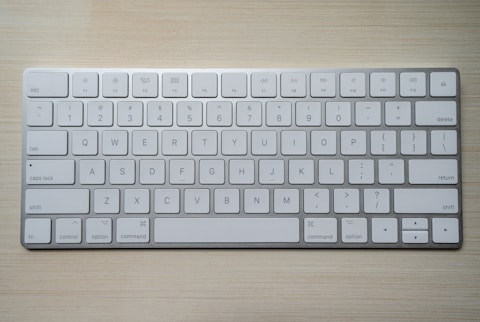
Why ROG Zephyrus M16 RGB Keyboard Does Not Work
ASUS ROG RGB keyboard on the Zephyrus M16 requires three components: ASUS System Control Interface (ASCI) driver, ASUS Aura service (AsusAuraService.exe), and Armoury Crate application for profile management. If any component is missing or stopped, RGB keyboard control fails. Windows Update can replace the ASUS System Control Interface driver with a generic HID driver, breaking the communication path between Armoury Crate and the keyboard RGB controller. Armoury Crate partial uninstall during update processes can leave the Aura service registered but non-functional, causing Aura Creator to report no compatible devices despite the keyboard being physically connected.
- ASUS Aura service stopped or crashed – RGB controller has no active management
- ASUS System Control Interface driver replaced by generic HID after Windows Update
- Armoury Crate partial install or corrupt database – Aura Creator device list empty
- Keyboard brightness set to 0 via Fn+F4 – backlight physically off but RGB hardware intact
Fix 1 – Check Keyboard Brightness Keys
Press Fn+F4 to increase keyboard backlight brightness on the ROG Zephyrus M16. The F4 key typically controls backlight brightness in ROG laptops. If the backlight was set to minimum brightness (off), increasing brightness immediately restores the RGB lighting without any driver or software intervention. Press Fn+F4 multiple times to cycle through Off, Low, Medium, and High brightness levels. If the keyboard illuminates after brightness increase, the hardware and RGB control are fully functional – the brightness had been accidentally set to Off, which is a common accidental trigger during gaming sessions when Fn+F4 is pressed inadvertently.
Fix 2 – Reinstall Armoury Crate
Go to asus.com/support and download the Armoury Crate Uninstall Tool. Run it to remove all ASUS software components including Armoury Crate, Aura Creator, and ASUS System Control Interface. Restart. After restart, download the latest Armoury Crate installer from asus.com/support. Install it and restart. After Armoury Crate reinstalls, open it and go to Aura Creator. The keyboard should appear as a device with RGB zones visible. Select Keyboard – choose a lighting effect (Static, Breathing, Strobe, Color Cycle) and Apply. Clean Armoury Crate installation from the official uninstall tool ensures all registry entries and service registrations are clean before reinstalling the current version for the ROG Zephyrus M16 RGB system.
Restart ASUS Aura Service
Press Windows+R and type services.msc. Find ASUS Aura Service (AsusAuraSyncService or AsAuraService) in the list. Check if the Status shows Running. If stopped, right-click and select Start. If it shows Running but RGB is not working, right-click and select Restart. If the service fails to start with an error, Armoury Crate reinstall from the ASUS uninstall tool is needed as described above. A running ASUS Aura Service is the prerequisite for any RGB keyboard lighting profile to be active on the ROG Zephyrus M16 – without it, the keyboard defaults to no lighting or the last hardware-stored color profile.

Fix 3 – Update ASUS System Control Interface
Open Armoury Crate – Settings (gear icon) – System Update. Check for ASUS System Control Interface update and install. The ASUS System Control Interface is the low-level driver that provides the communication channel between Windows software (Armoury Crate, Aura Creator) and the embedded controller managing keyboard RGB hardware on the Zephyrus M16. Without the current ASCI version, Aura Creator cannot send RGB color data to the keyboard controller, making keyboard lighting appear stuck or inactive. Update ASCI before attempting Armoury Crate reinstall as it is the simpler fix that resolves RGB keyboard issues from driver version mismatch without requiring full software reinstall.
Fix 4 – Create New Aura Creator Profile
In Armoury Crate – Aura Creator, delete any existing keyboard lighting profiles that were created with an older Armoury Crate version. Older profiles may contain commands incompatible with the current ASCI driver, causing Aura Creator to silently fail when attempting to apply them. Create a new profile from scratch: click Create in Aura Creator, add the Keyboard device, choose a simple Static effect with a solid color, and Apply. A new profile created with the current Armoury Crate version uses the correct command format for the current ASCI driver and successfully activates RGB keyboard lighting on the ROG Zephyrus M16 Intel Core i9 13900H without the compatibility issues of imported older profiles.
Frequently Asked Questions
How do I fix RGB keyboard on ASUS ROG Zephyrus M16 Intel Core i9 13900H?
Press Fn+F4 to check brightness level. Restart ASUS Aura Service in services.msc. Reinstall Armoury Crate using ASUS uninstall tool from asus.com/support.
Why is ROG Zephyrus M16 keyboard RGB not working?
ASUS Aura service stopped, ASCI driver conflict from Windows Update, or Armoury Crate corrupt database. Aura service restart and ASUS System Control Interface update are first steps.
How do I change keyboard color on ASUS ROG Zephyrus M16?
Armoury Crate – Aura Creator – Keyboard – select effect and color – Apply. Static, Breathing, Color Cycle, and Strobe effects available. Per-key customization in Advanced Aura Creator mode.
Can I use ASUS ROG Zephyrus M16 keyboard without Armoury Crate?
Yes – keyboard types normally without Armoury Crate. RGB defaults to rainbow cycle. Armoury Crate required only for custom static colors and custom lighting profiles.
Conclusion
ASUS ROG Zephyrus M16 Intel Core i9 13900H RGB keyboard not working in Windows 11 is resolved by checking keyboard brightness via Fn+F4, restarting ASUS Aura Service in Windows Services, and updating ASUS System Control Interface driver via Armoury Crate System Update. Full Armoury Crate reinstall using the ASUS official uninstall tool clears corrupt database and service registrations that prevent Aura Creator from communicating with the keyboard RGB controller. New Aura Creator lighting profile eliminates compatibility issues from profiles created with previous Armoury Crate versions on the ROG Zephyrus M16 RGB keyboard system.
Ryan holds a Computer Science degree and has spent over 15 years troubleshooting Windows hardware and driver issues across major laptop brands. He writes practical, step-by-step guides for everyday users at softwaredriverdownload.com.
Leave a Reply