The fans on your ASUS VivoBook Pro 15 OLED N6506 run audibly even during light work like browsing, email, and basic photo editing – the RTX 4070 and Core Ultra generate heat that requires active cooling even during moderate workloads when MyASUS is in Performance mode.
This guide covers MyASUS performance mode switching, GPU background process management, and NVIDIA driver settings to reduce fan noise on the ASUS VivoBook Pro 15 OLED N6506 in Windows 11.
“VivoBook Pro 15 OLED fans were clearly audible even writing documents. MyASUS was in Performance mode. Switching to Whisper made it nearly silent for all my creative prep work.” – Suhaila, content writer from Shah Alam
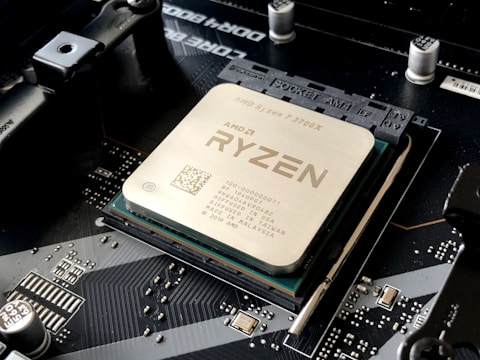
Why Fans Run Loudly on VivoBook Pro 15 OLED N6506
The ASUS VivoBook Pro 15 OLED N6506 uses a dual-fan cooling system shared between the Intel Core Ultra CPU and NVIDIA RTX 4070. MyASUS Performance mode increases both CPU and GPU power limits and pre-spins fans at higher minimum RPMs to prevent thermal spikes during burst creative workloads. For sustained light work like document editing or browsing, Performance mode keeps fans spinning unnecessarily fast.
- MyASUS Performance or Turbo mode maintaining high minimum fan speed for all workloads
- Background GPU-accelerated processes keeping RTX 4070 at elevated power draw
- NVIDIA GPU keeping a high power state due to a secondary monitor connected via HDMI
- Dust accumulation in fan blades creating mechanical noise at moderate RPM
Fix 1 – Switch to Standard or Whisper Mode in MyASUS
Open MyASUS (pre-installed, available in Start menu or taskbar). Go to System Settings or Performance – Fan Speed. Change from Performance to Standard for balanced noise and performance. Select Whisper for near-silent operation during light creative work. Whisper mode significantly reduces minimum fan speed and allows the CPU and GPU to clock down more aggressively, resulting in noticeably quieter operation during word processing and browsing.
Fix 2 – Check GPU Background Processes
Open Task Manager (Ctrl + Shift + Esc) and click the GPU column header to sort by GPU usage. Look for applications consuming GPU resources unexpectedly. Radeon Software, NVIDIA overlay, browser hardware acceleration, and background video processing apps can keep the RTX 4070 active at moderate power even when no foreground GPU work is happening. Closing unnecessary GPU-accelerated applications allows the RTX 4070 to enter a low-power state and fans to slow down.
Configure NVIDIA Optimus for Power Saving
In NVIDIA Control Panel – Manage 3D settings – Global Settings, set Preferred graphics processor to Integrated graphics or Power saving GPU. This forces all applications to use Intel Arc integrated graphics unless explicitly assigned to NVIDIA. The RTX 4070 then enters deep sleep, generating no heat and requiring no fan cooling during light workloads. Switch back to Auto-select before starting creative applications.

Fix 3 – Update MyASUS and Armoury Crate
Open Microsoft Store and update MyASUS to the latest version. Also update any ASUS system management tools listed. MyASUS fan profile calibrations are updated in newer versions to reduce the minimum fan speed thresholds in Standard mode, providing quieter operation without reducing cooling capability during burst workloads on the VivoBook Pro 15 OLED N6506.
Fix 4 – Clean Fan Vents with Compressed Air
Use compressed air through the rear and bottom vents of the VivoBook Pro 15 OLED N6506. Dust on fan blades increases air resistance and forces higher RPMs to maintain the same airflow. A mechanical buzzing or rattling at fan speed that was previously inaudible indicates dust on the fan blades. Cleaning the vents restores the original acoustic profile and reduces the perceived fan noise level.
Frequently Asked Questions
Why are fans loud on ASUS VivoBook Pro 15 OLED N6506?
MyASUS is in Performance mode with high minimum fan speed. Switch to Standard or Whisper for quiet operation during light creative work.
How do I reduce fan noise on ASUS VivoBook Pro 15 OLED N6506?
MyASUS – Whisper or Standard mode. Check Task Manager GPU column for background GPU processes. Set NVIDIA Optimus to integrated graphics during light work.
Does ASUS VivoBook Pro 15 OLED N6506 have a dedicated GPU?
Yes – NVIDIA GeForce RTX 4070 Laptop GPU with Intel Core Ultra and Intel Arc integrated graphics in Optimus configuration.
Can I set a custom fan curve on ASUS VivoBook Pro 15 OLED N6506?
No custom curve in MyASUS – only Whisper, Standard, Performance, and Turbo mode presets are available.
Conclusion
Fan noise on ASUS VivoBook Pro 15 OLED N6506 in Windows 11 is reduced by switching MyASUS from Performance to Standard or Whisper mode. Managing background GPU processes in Task Manager and setting NVIDIA Optimus to integrated graphics during light work prevents the RTX 4070 from generating heat that requires fan cooling. Cleaning vents restores original acoustic performance on older units with accumulated dust.
Ryan holds a Computer Science degree and has spent over 15 years troubleshooting Windows hardware and driver issues across major laptop brands. He writes practical, step-by-step guides for everyday users at softwaredriverdownload.com.
Leave a Reply