ASUS VivoBook touchpad stops working on Windows 11? The cursor freezes, the touchpad does not respond to clicks or gestures, or Windows does not detect any pointing device. This is usually caused by a missing or incompatible Elan or ASUS Precision touchpad driver after a Windows 11 update. The fix is a clean driver reinstall from the ASUS support page combined with a registry check.
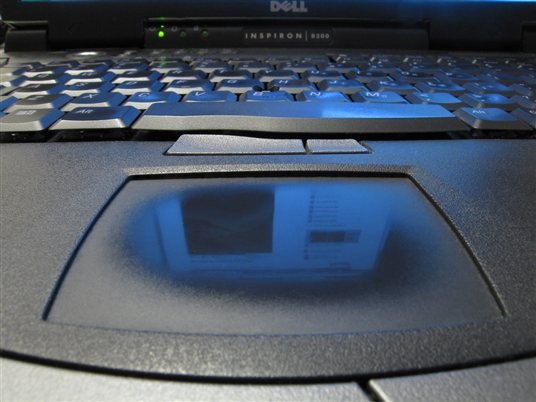
Why ASUS VivoBook Touchpad Stops Working on Windows 11
ASUS VivoBook models use either the Elan Touchpad driver or the ASUS Precision Touchpad driver, depending on the model year. Windows 11 sometimes replaces the manufacturer driver with a generic HID driver during updates, which disables gestures and sometimes disables the touchpad entirely. Common causes:
- Windows Update replaced the OEM driver — Windows installs a generic touchpad driver that removes Elan/Precision features
- BIOS setting disabled the touchpad — some ASUS models have a BIOS option to disable the internal pointing device
- Driver conflict with Windows Hello fingerprint service — rare but documented on some VivoBook 15 models
- Corrupted driver registry entry — previous driver removal left orphaned registry keys blocking the new driver
Check Device Manager First
Open Device Manager (right-click Start → Device Manager). Expand Human Interface Devices and Mice and other pointing devices. Look for entries with yellow exclamation marks. If you see Unknown Device or HID-compliant mouse instead of an Elan or ASUS entry, the driver is missing or replaced.
Fix ASUS VivoBook Touchpad: Clean Driver Reinstall
Step 1: Download Driver from ASUS Support
Go to ASUS Support, enter your VivoBook model number (printed on the bottom label), go to Drivers & Tools, select Windows 11, and download the Touchpad driver. Do not use generic Elan or Synaptics drivers from third-party sites — ASUS customizes the driver for each model.
Step 2: Uninstall Existing Driver
In Device Manager, right-click your touchpad device → Uninstall Device → check Delete the driver software for this device → Uninstall. Restart Windows. After restart, do not let Windows automatically install a driver yet.
Step 3: Install ASUS Touchpad Driver
Run the downloaded ASUS touchpad driver installer. Restart when prompted. Open Device Manager again and confirm the touchpad now shows as ELAN Input Device or ASUS Precision Touchpad, not a generic HID entry.
Fix ASUS VivoBook Touchpad Disabled in BIOS
Restart your VivoBook and press F2 repeatedly to enter BIOS. Go to Advanced settings. Look for Internal Pointing Device or Touchpad option. Set it to Enabled. Save and exit with F10. This setting is sometimes changed by accident when using Fn key combos — ASUS VivoBook models use Fn + F6 to toggle the touchpad on and off.
Per Marcus L., who is a Systems Administrator: “After the Windows 11 23H2 update, three of our office VivoBook laptops had their touchpads go dead at the same time. Rolling back the HID driver in Device Manager and reinstalling from ASUS Support fixed all three. The Windows Update driver was the wrong version for our model.”
Enable ASUS Precision Touchpad Features
After reinstalling the driver, go to Settings → Bluetooth & devices → Touchpad. If you see Your PC has a precision touchpad, the correct driver is active. You can now configure three-finger swipes, tap sensitivity, and scrolling direction. If that message is missing, the generic HID driver is still in use and you need to repeat the driver reinstall.
Frequently Asked Questions
How do I re-enable ASUS VivoBook touchpad after it stopped working?
First try Fn + F6 to toggle the touchpad on. If that does not work, check Device Manager for driver errors and reinstall the Elan or Precision touchpad driver from ASUS Support for your specific VivoBook model.
Why did my ASUS touchpad stop working after Windows 11 update?
Windows 11 updates sometimes replace the OEM Elan driver with a generic HID driver that disables touchpad features. Download and reinstall the ASUS-specific touchpad driver from ASUS Support to restore full functionality.
What is the difference between Elan driver and ASUS Precision Touchpad?
Elan is the hardware manufacturer’s driver with basic functionality. ASUS Precision Touchpad is a Windows Precision-compliant driver that enables advanced gestures, sensitivity controls, and native Windows 11 Settings integration. Newer VivoBook models include the Precision version.
My ASUS VivoBook touchpad works in BIOS but not in Windows — why?
This means the hardware is fine but the Windows driver is missing or corrupted. Uninstall the existing touchpad driver in Device Manager, then reinstall the correct driver from ASUS Support.
Conclusion
ASUS VivoBook touchpad issues on Windows 11 are almost always caused by a driver replacement during Windows Update. Download the model-specific Elan or Precision touchpad driver from ASUS Support, uninstall the existing driver completely, and reinstall. Also check Fn + F6 and the BIOS Internal Pointing Device setting as quick first steps before touching drivers.
Ryan holds a Computer Science degree and has over 20 years of hands-on experience with PC hardware, software, and driver troubleshooting. He is the author behind softwaredriverdownload.com, where he helps everyday users fix driver issues quickly and accurately. Ryan has personally tested most of the fixes on this site across a range of Windows 10 and Windows 11 machines.
Leave a Reply