Why it happens
NVIDIA GPU driver missing or corrupted after a Windows Update, causing Device Manager to show error code 43
BIOS GPU switching or dGPU disable setting active, preventing the discrete GPU from initializing
Thermal shutdown event causing the GPU to be disabled by the firmware as a protection mechanism
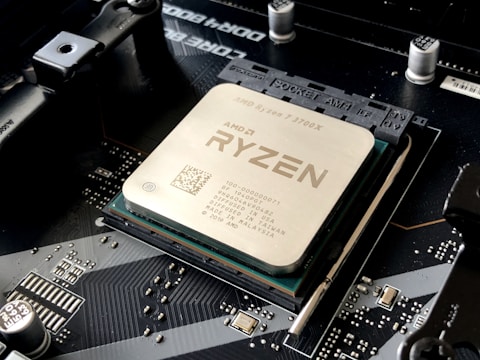
NVIDIA Optimus driver conflict with the Intel integrated graphics driver causing PCIe enumeration failure
How to fix
Reinstall the NVIDIA Quadro or RTX driver from Dell Support — Go to Dell Support, find the Precision 3591, and download the latest NVIDIA Quadro/RTX driver. Use DDU (Display Driver Uninstaller) in safe mode to fully clean the existing driver before installing the new one.
Check BIOS dGPU enable setting — Restart, press F2, go to Video → Switchable Graphics or Display and confirm the discrete GPU is set to Enabled. Dell Precision BIOS includes a dGPU disable option for shipping configurations where only the iGPU is needed.

Update the Intel graphics driver — Go to Dell Support and download the latest Intel UHD or Arc Graphics driver. NVIDIA Optimus on the Precision 3591 relies on the Intel driver to route display output, and an outdated Intel driver can prevent the NVIDIA GPU from being detected correctly.
Cool the laptop and check for thermal throttling — If the GPU went offline after the laptop ran hot, ensure vents are clear and the laptop has cooled fully. A thermal protection event can disable the GPU until the next cold boot. Also run Dell SupportAssist to check for thermal alerts.
Update the BIOS — Install the latest BIOS from Dell Support for the Precision 3591. Dell Precision BIOS updates include PCIe enumeration fixes specifically for NVIDIA Quadro and RTX GPU detection issues on the Core Ultra 7 165H platform.
Razif, Kuala Lumpur: “My Precision 3591 showed error code 43 for the NVIDIA GPU after a Windows Update. Using DDU to clean the driver and reinstalling from Dell Support fixed it completely.”
Frequently Asked Questions
What GPU options does the Dell Precision 3591 come with?
The Dell Precision 3591 is available with NVIDIA RTX 500 Ada, RTX 1000 Ada, or RTX 2000 Ada Laptop GPU options, paired with the Intel Core Ultra 7 165H processor. All use NVIDIA Optimus for hybrid graphics switching between the Intel iGPU and NVIDIA dGPU.
What does error code 43 mean for the NVIDIA GPU in Device Manager?
Error code 43 (Windows has stopped this device because it has reported problems) typically means the NVIDIA driver has crashed or is incompatible. A clean driver reinstall using DDU resolves this in most cases. If it persists after multiple driver reinstalls, the GPU hardware may have a defect.
Can I use the Precision 3591 for workstation tasks without the discrete GPU?
Yes, for general productivity tasks the Intel integrated graphics handles display output when the NVIDIA GPU is disabled or not detected. However, GPU-accelerated workloads such as 3D rendering, video encoding, and CUDA computation require the NVIDIA discrete GPU to be functional.
Does DDU need to be run in safe mode on the Dell Precision 3591?
Yes. DDU (Display Driver Uninstaller) works best in safe mode where the NVIDIA driver is not loaded into memory. Boot into safe mode (Shift + Restart → Troubleshoot → Advanced options → Startup Settings → Safe Mode), then run DDU before installing the new driver.
Ryan holds a Computer Science degree and has over 20 years of hands-on experience with PC hardware, software, and driver troubleshooting. He is the author behind softwaredriverdownload.com, where he helps everyday users fix driver issues quickly and accurately. Ryan has personally tested most of the fixes on this site across a range of Windows 10 and Windows 11 machines.
Leave a Reply