The Dell XPS 13 Plus ships with an edge-to-edge capacitive touchpad that is physically larger and more sensitive than the touchpad on previous XPS 13 models. Many users find the default sensitivity too high — the cursor jumps during typing, accidental taps open items unexpectedly, or the pointer moves when resting a thumb near the edge. This guide covers the most effective Windows 11 settings adjustments and driver-level fixes for the XPS 13 Plus touchpad.
Step 1 – Reduce Touchpad Sensitivity in Windows 11 Settings
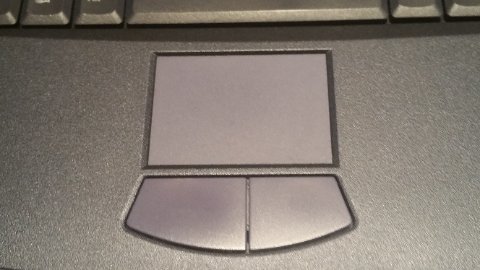
- Open Settings → Bluetooth & devices → Touchpad.
- Under Touchpad sensitivity, change the dropdown from Medium sensitivity (default) to Low sensitivity. This is the fastest change and resolves most accidental activation complaints.
- If Low sensitivity causes missed intentional taps, try High sensitivity combined with palm rejection settings from Step 3 — sometimes the issue is specifically palm interference rather than general over-sensitivity.
Step 2 – Disable Tap-to-Click If Accidental Taps Are the Main Problem
- In Settings → Bluetooth & devices → Touchpad → Taps, uncheck Tap with a single finger to single-click.
- With tap-to-click disabled, only physical depression of the touchpad registers a click. The XPS 13 Plus haptic feedback still fires on tap, but no click is sent to the OS. This eliminates the majority of accidental click complaints.
- Optionally uncheck Tap with two fingers to right-click if two-finger taps are also triggering accidentally.
Step 3 – Adjust Palm Rejection via Precision Touchpad Registry
- Press Windows + R, type
regedit, press Enter, and accept the UAC prompt. - Navigate to:
HKEY_CURRENT_USER\Software\Microsoft\Windows\CurrentVersion\PrecisionTouchPad - Find the DWORD value AAPThreshold. Double-click it, select Decimal, and change it from the default of 3 to 4 or 5. Higher values make palm rejection more aggressive — fewer accidental activations from resting hands near the touchpad edge.
- Test immediately (no restart needed). Increase by 1 at a time until accidental activations stop without causing missed intentional inputs.
Per Dell’s XPS 13 Plus support documentation, “The haptic touchpad on XPS 13 Plus uses a larger surface area than previous XPS 13 generations. Users transitioning from XPS 13 9310 or earlier models may need to adjust palm rejection settings in Windows Precision Touchpad settings to compensate for the larger active sensing zone.”
Step 4 – Update or Reinstall the Dell Touchpad Driver
- Go to dell.com/support and enter your XPS 13 Plus service tag (printed on the underside label or found via Settings → System → About → Device specifications).
- Navigate to Drivers & Downloads → Input → Touchpad. Download the latest driver package.
- Before installing, open Device Manager → Mice and other pointing devices, right-click the touchpad entry, and select Uninstall device. Check Delete the driver software.
- Run the downloaded Dell driver installer and restart. The updated driver package may include improved palm rejection tuning specifically for the XPS 13 Plus sensor dimensions.
Step 5 – Disable Touchpad While Typing
- Open Settings → Bluetooth & devices → Touchpad.
- In the same Touchpad settings page, find the option under Related settings: Additional settings. In the Mouse Properties dialog that opens, look for a Device Settings or Dell Touchpad tab. Enable Disable internal pointing device when external USB pointing device is attached if you use a mouse during typing-intensive work.
- If the Dell Touchpad tab is not present, the option is available directly in Windows 11: Settings → Bluetooth & devices → Touchpad → scroll to the bottom → Don’t move the cursor when I’m typing toggle.
Frequently Asked Questions
The XPS 13 Plus touchpad vibrates but does not register clicks after adjusting settings.
The XPS 13 Plus uses a haptic (vibration-feedback) touchpad rather than a mechanical one. If the haptic response fires but no click registers, confirm the Precision Touchpad driver is installed — check Device Manager for HID-compliant touchpad. A missing or corrupted driver causes the haptic motor to respond while the OS receives no click signal.
My cursor moves while I am typing even with sensitivity set to Low.
Increase AAPThreshold to 5 or 6 in the PrecisionTouchPad registry key. At Low sensitivity, Windows reduces how easily intentional movement is detected, but AAPThreshold separately controls how much palm/wrist contact the driver suppresses. Both settings work independently and can be combined.
The touchpad feels different from a standard XPS 13 — is that expected?
Yes. The XPS 13 Plus haptic touchpad has no physical depression — it uses electromagnetic actuators to simulate click feedback. There is no hinge or pivot point. The entire surface is flat and rigid; only the simulated vibration distinguishes a tap from a click. This is by design and is not a malfunction.
After a Windows 11 update, the XPS 13 Plus touchpad became oversensitive again.
Windows updates can reset Precision Touchpad registry values. After any major update, recheck the AAPThreshold value in regedit and reapply if it has been reset to 3. Windows sensitivity settings in the Settings app are more persistent across updates than the registry values.
Conclusion
The Dell XPS 13 Plus touchpad’s larger sensing area and haptic design make it more prone to accidental activation than traditional touchpads. The most effective combination of fixes is: set Windows 11 sensitivity to Low, increase AAPThreshold in the Precision Touchpad registry to 4–5, and disable tap-to-click if accidental opens remain problematic. Keeping the Dell touchpad driver updated from dell.com/support ensures the palm rejection firmware for the specific XPS 13 Plus sensor is current.
Leave a Reply