HP Elite x2 G8 Detachable Keyboard Not Connecting Windows 11
The detachable keyboard on your HP Elite x2 G8 does not work after attaching – keystrokes are not registered, the touchpad does not move the cursor, or the keyboard is not detected in Device Manager. The HP Smart Connector keyboard uses pogo pin contacts that may need cleaning or driver reinstallation.
This guide covers Smart Connector cleaning, HP keyboard driver reinstallation, and Windows 11 device manager checks to restore the detachable keyboard on the HP Elite x2 G8.
“Keyboard on my Elite x2 G8 stopped working after I detached it for a presentation. Reattaching did nothing. HP Smart Connector driver reinstall from HP Support fixed it completely.” – Norzila, corporate trainer from Petaling Jaya
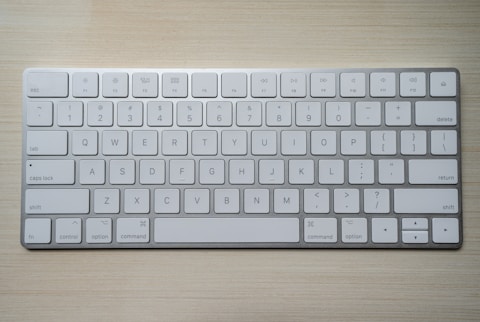
Why Detachable Keyboard Fails on HP Elite x2 G8
The HP Elite x2 G8 keyboard uses the HP Smart Connector – a row of pogo pin contacts on the bottom edge of the tablet that mate with corresponding contacts on the keyboard cover. Debris or oxidation on the contacts prevents electrical connection. After repeated attachment and detachment, the HP Smart Connector Driver can also lose its registration, requiring reinstallation to re-establish the keyboard interface.
- Smart Connector pogo pins dirty or oxidized preventing electrical contact
- HP Smart Connector Driver corrupted after Windows 11 update
- HP Keyboard Filter Driver not loaded preventing keyboard input processing
- Static discharge event resetting the Smart Connector handshake state
Fix 1 – Clean Smart Connector Contacts
Power off the HP Elite x2 G8. Detach the keyboard. Inspect the pogo pin contacts on both the tablet bottom edge and the keyboard top connector strip. Use a dry cotton swab to clean any dust or debris from the contacts. If there is visible oxidation (greenish tint), use a cotton swab lightly dampened with 99 percent isopropyl alcohol and let it dry completely before reattaching. Firmly reattach the keyboard and power on.
Fix 2 – Reinstall HP Smart Connector and Keyboard Drivers
Go to support.hp.com/us-en/drivers, search for HP Elite x2 G8, and download HP Smart Connector Software and HP Keyboard Filter Driver from the Input Devices section. Uninstall existing keyboard drivers from Device Manager. Install the HP packages and restart with the keyboard attached.
Verify Keyboard in Device Manager
With the keyboard attached, open Device Manager and expand Keyboards. You should see at least two entries: HID Keyboard Device (built-in) and HP Smart Connector keyboard device. If only the built-in is listed, the Smart Connector is not establishing communication. Try detaching and reattaching the keyboard while watching Device Manager for the new device to appear.
Fix 3 – Run HP PC Diagnostics
Download HP PC Hardware Diagnostics UEFI from HP Support. Boot to it (press Esc at startup, then F2). Under Component Tests, find Input Devices – Keyboard. The diagnostic tests the Smart Connector hardware circuit independently of Windows drivers. If the keyboard fails the hardware test, there is a physical Smart Connector failure requiring HP service.
Fix 4 – Check for Windows Update Driver Conflict
Open Device Manager and look for yellow warning triangles on any keyboard or HID device. If an HID device shows an error code, right-click and select Update driver – Search automatically. If Windows installed a conflicting generic HID keyboard driver that replaced the HP keyboard filter, uninstalling it and reinstalling the HP keyboard filter driver resolves the conflict.
Frequently Asked Questions
Why is detachable keyboard not working on HP Elite x2 G8?
Smart Connector contacts may be dirty, or HP Smart Connector and Keyboard Filter Drivers need reinstalling from HP Support.
How do I reconnect keyboard on HP Elite x2 G8?
Clean the Smart Connector pogo pins with dry cotton swab, firmly reattach keyboard, and reinstall HP Smart Connector Software from HP Support if not detected.
Does HP Elite x2 G8 keyboard connect via Bluetooth?
No – HP Smart Connector (magnetic pogo pins). No pairing needed. Connects automatically when attached.
What drivers does HP Elite x2 G8 keyboard need?
HP Smart Connector Driver and HP Keyboard Filter Driver from HP Support under Input Devices for Elite x2 G8.
Conclusion
HP Elite x2 G8 detachable keyboard not connecting in Windows 11 is resolved by cleaning the Smart Connector pogo pin contacts and reinstalling HP Smart Connector Software and HP Keyboard Filter Driver from HP Support. Running HP Hardware Diagnostics verifies whether the connection failure is software-correctable or requires HP service for a physical Smart Connector repair.
Ryan holds a Computer Science degree and has spent over 15 years troubleshooting Windows hardware and driver issues across major laptop brands. He writes practical, step-by-step guides for everyday users at softwaredriverdownload.com.
Leave a Reply