HP Envy laptop number pad not working on Windows 11? The numpad keys type nothing, NumLock does not toggle on and off correctly, or the numpad works in BIOS but not in Windows. HP Envy laptops use a standard HID keyboard driver for the numpad, but the NumLock state and the on-screen numpad overlay in Windows 11 can interfere with numpad behavior. The fix is usually a NumLock state reset or a keyboard driver reinstall.
Why HP Envy Laptop NumPad Stops Working on Windows 11
HP Envy laptops have a dedicated numpad (right side of keyboard) on 15-inch and 17-inch models, and a virtual NumPad overlay on some HP Envy x360 13-inch models. Different failure modes apply to each:
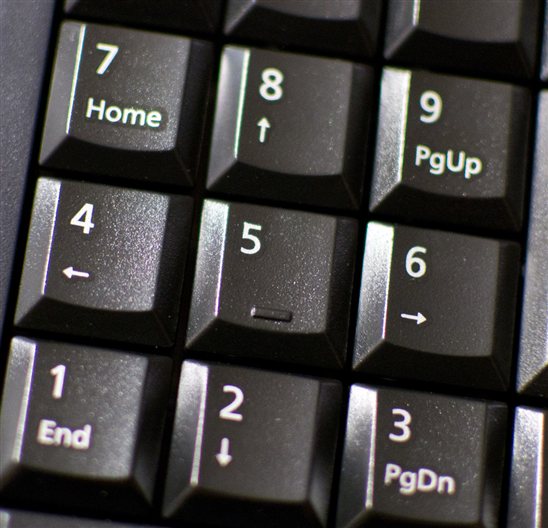
- NumLock is off — the most common cause; numpad keys act as navigation keys (arrows, Home, End) when NumLock is disabled
- Windows 11 changed NumLock startup state — a registry value controls whether NumLock is on or off at boot; Windows updates sometimes reset this
- HP Virtual Numpad (Envy x360 13-inch) not responding — the touchpad overlay numpad requires the HP numpad driver to be installed
- HID keyboard driver corrupted after Windows 11 update — numpad keys send wrong scancodes or no input at all
Press NumLock First
Press the NumLock key (top-left of the numpad area, or Fn + NumLock on compact models). A NumLock indicator light on the keyboard or taskbar shows the current state. On HP Envy models, the NumLock LED is on the numpad area itself. If NumLock was off, pressing it will immediately restore numpad number input.
Fix NumLock Startup State in Registry
If NumLock keeps turning off after every restart, the registry startup value is wrong. Open Registry Editor and go to HKEY_USERS\.DEFAULT\Control Panel\Keyboard. Find the value InitialKeyboardIndicators. Change it to 2 (NumLock on) from 0 (NumLock off). Restart. NumLock will now be active every time Windows starts.
Also check HKEY_CURRENT_USER\Control Panel\Keyboard and set the same value to 2 for the current user profile. Both locations must match for consistent NumLock-on behavior across login and lock screen.

Fix HP Envy Virtual NumPad (x360 13-inch Models)
HP Envy x360 13-inch models have a NumPad overlay on the touchpad that activates by holding the NumLock icon in the top-right corner of the touchpad for 2 seconds. If this does not work, the HP numpad software is missing. Go to HP Support, enter your Envy x360 model, and download the HP Numpad Driver or HP Touchpad Driver with NumPad. Install and restart.
Fix HP Envy Keyboard Driver for NumPad Keys
If the numpad is on but keys still do not respond, the keyboard driver needs reinstalling. Open Device Manager → Keyboards → right-click HID Keyboard Device or Standard PS/2 Keyboard → Uninstall Device → check Delete driver → Uninstall. Action → Scan for Hardware Changes. Windows reinstalls the HID keyboard driver automatically. Restart and test the numpad.
Per William F., who is an Accountant using an HP Envy 17: “My numpad stopped working after a Windows 11 update. NumLock was on but the keys did nothing. Reinstalling the HID keyboard driver in Device Manager fixed it instantly. The update had installed a conflicting generic driver over the HP keyboard driver.”
Frequently Asked Questions
How do I turn on NumLock on HP Envy laptop at startup?
Open Registry Editor, go to HKEY_USERS\.DEFAULT\Control Panel\Keyboard, and set InitialKeyboardIndicators to 2. Also set the same value in HKEY_CURRENT_USER\Control Panel\Keyboard. Restart — NumLock will now be on automatically at every boot.
HP Envy x360 touchpad numpad not working — how to enable it?
Hold your finger on the numpad icon in the top-right corner of the touchpad for 2 seconds to activate the overlay. If nothing happens, the HP Numpad driver is missing — download it from HP Support for your specific Envy x360 model.
NumPad types letters instead of numbers on HP Envy — why?
NumLock is off. The numpad keys act as cursor navigation (arrows, Home, End, PgUp, PgDn) when NumLock is disabled. Press NumLock to switch to number input mode.
HP Envy numpad works in BIOS but not in Windows — what does this mean?
The hardware is fine but the Windows keyboard driver is broken. Reinstall the HID Keyboard Device driver in Device Manager or run SFC /scannow from an elevated Command Prompt to repair corrupted system files.
Conclusion
HP Envy numpad not working on Windows 11 is almost always a NumLock state issue — press NumLock first. If NumLock keeps turning off at startup, fix the InitialKeyboardIndicators registry value to 2 in both HKEY_USERS\.DEFAULT and HKEY_CURRENT_USER. For Envy x360 virtual numpad, install the HP Numpad driver from HP Support. For keys that do not respond even with NumLock on, reinstall the HID keyboard driver in Device Manager.
Ryan holds a Computer Science degree and has over 20 years of hands-on experience with PC hardware, software, and driver troubleshooting. He is the author behind softwaredriverdownload.com, where he helps everyday users fix driver issues quickly and accurately. Ryan has personally tested most of the fixes on this site across a range of Windows 10 and Windows 11 machines.
Leave a Reply