HP Pavilion 15 EG3 · Intel Core i7 1355U · Windows 11
Keyboard Backlight Not Working — How to Fix
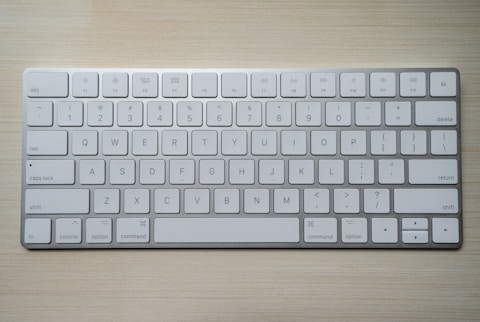
The HP Pavilion 15 EG3 has a single-zone keyboard backlight controlled by the Fn + F5 key combination. After a Windows 11 update or a fresh Windows installation, the HP Hotkey Support driver is sometimes removed, which disables all Fn key shortcuts including the backlight toggle. The good news is that reinstalling this small driver restores full backlight control within minutes.
Fix 1 — Install HP Hotkey Support Driver
Go to support.hp.com and search for HP Pavilion 15 EG3. Under Drivers and Downloads, filter by Software or Driver-Keyboard. Find the package labelled HP Hotkey Support and download the latest version for Windows 11. Run the installer as administrator. After installation, restart your laptop and press Fn + F5 to cycle through backlight brightness levels. On the EG3, there are three states: off, dim, and bright.

Fix 2 — Check Keyboard Backlight in BIOS
Restart the HP Pavilion 15 EG3 and press F10 immediately when the HP logo appears to enter BIOS Setup Utility. Navigate to the Advanced tab or System Configuration section. Look for an option called Keyboard Backlight or Backlight. Make sure it is set to Enabled or Automatic (On AC and Battery). If it is set to Disabled, enable it, press F10 to save, and restart. The Fn + F5 shortcut will then work as expected once back in Windows.
Fix 3 — Use HP Support Assistant for Driver Updates
Open HP Support Assistant from the taskbar or Start menu. Go to Updates and run a scan for available updates. HP Support Assistant checks specifically for drivers and firmware required by your exact Pavilion 15 EG3 configuration, including regional keyboard variants. If HP Hotkey Support is listed as a missing or outdated driver, install it directly through the assistant and restart.

Fix 4 — Verify Fn Key Lock is Off
The HP Pavilion 15 EG3 has an Fn Lock feature. When Fn Lock is active, pressing F5 alone triggers the backlight, and pressing Fn + F5 triggers the standard F5 function. The status light or Fn indicator key shows if Fn Lock is on. Press Fn + Esc to toggle Fn Lock on or off. After toggling, try the F5 key alone to see if the backlight responds. This is often overlooked as a cause of the backlight appearing to not work.
- Fn Lock off: press Fn + F5 to control backlight
- Fn Lock on: press F5 alone to control backlight
- Toggle Fn Lock: press Fn + Esc
The keyboard backlight was not working after a Windows update. Installing HP Hotkey Support from the HP website fixed it straight away. — Lena, George Town
Ryan holds a Computer Science degree and has spent over 15 years troubleshooting Windows hardware and driver issues across major laptop brands. He writes practical, step-by-step guides for everyday users at softwaredriverdownload.com.
Leave a Reply