The HP Pavilion 15 supports RAM upgrades on most variants, but the maximum capacity and slot configuration varies significantly between processor generations. Some models have two upgradeable SODIMM slots while others have one slot soldered to the motherboard. This guide identifies the slot configuration for your specific model and provides a step-by-step RAM installation procedure.
Step 1 – Find Your HP Pavilion 15 Slot Configuration
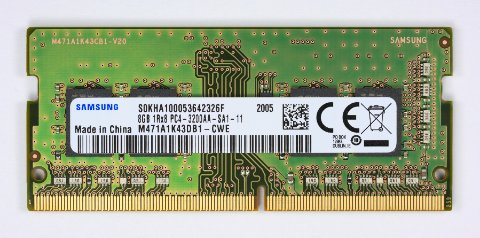
The slot configuration is determined by processor generation. Use the table below as a starting reference, then verify against your model’s Maintenance and Service Guide from HP Support.
| Processor Generation | Slot Config | Max RAM | DDR4 Speed |
|---|---|---|---|
| Intel 10th Gen (Ice Lake) | 1 soldered + 1 SODIMM | 16 GB | DDR4-3200 |
| Intel 11th Gen (Tiger Lake) | 2 SODIMM | 32 GB | DDR4-3200 |
| Intel 12th Gen (Alder Lake) | 2 SODIMM | 32 GB | DDR4-3200 |
| AMD Ryzen 4000 (Renoir) | 2 SODIMM | 32 GB | DDR4-3200 |
| AMD Ryzen 5000 (Cezanne) | 2 SODIMM | 32 GB | DDR4-3200 |
- Find your full model number on the underside label (e.g., HP Pavilion 15-eg2xxx for 12th Gen Intel).
- Go to support.hp.com, enter your model, and download the Maintenance and Service Guide. The Memory section lists exact slot count, maximum capacity per slot, and supported DDR4 speed.
- On models with one soldered slot, you can only upgrade the single SODIMM slot — the soldered RAM cannot be removed or replaced.
Step 2 – Check Current RAM and Available Slots
- Press Ctrl + Shift + Esc to open Task Manager and click the Performance tab.
- Select Memory. The bottom of the panel shows Slots used: X of Y. If it shows 1 of 2, one slot is free. If it shows 2 of 2, both slots are occupied and you must replace one or both sticks to upgrade.
- Note the current RAM speed shown (e.g., 3200 MHz). The replacement stick should match or be compatible with this speed.
Step 3 – Purchase the Correct DDR4 SODIMM
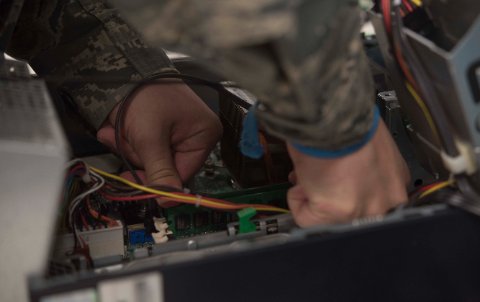
| Spec | Required Value |
|---|---|
| Form factor | SODIMM (laptop — not desktop DIMM) |
| Type | DDR4 (not DDR5 — Pavilion 15 uses DDR4) |
| Speed | 3200 MHz (PC4-25600) for most modern variants |
| Voltage | 1.2V |
| Capacity per stick | 8 GB or 16 GB (max 16 GB per slot on most variants) |
- If adding a second stick to a system that already has one, purchase the same capacity to enable dual-channel mode (e.g., add 8 GB to a system with 8 GB).
- Dual-channel requires both slots populated with matched sticks and provides a measurable performance improvement over single-channel.
Step 4 – Install the SODIMM
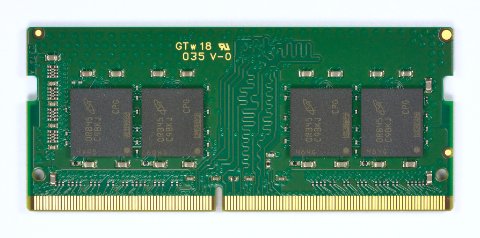
- Power off the HP Pavilion 15 and disconnect AC power. Wait 30 seconds.
- Remove the bottom panel screws. Use a plastic spudger to release the clips around the perimeter and lift the panel off.
- Locate the SODIMM slot(s). RAM sticks sit at an angle and are held by two metal retaining clips on the sides.
- To remove an existing stick: push both retaining clips outward simultaneously — the stick pops up to approximately 30 degrees. Pull it straight out from the slot.
- To insert the new stick: align the notch on the SODIMM with the key in the slot. Push the stick in at 30 degrees until fully seated, then press it flat until both clips click into place.
- Reassemble the bottom panel and power on.
Per HP’s Maintenance and Service Guide for HP Pavilion 15 series, “Install memory modules in matched pairs (same manufacturer, speed, and capacity) to enable dual-channel memory operation and maximize system performance.”
Step 5 – Verify the Upgrade
- Boot into Windows. If POST fails (beep codes or black screen), re-seat the RAM — the most common cause is the stick not fully inserted.
- Open Task Manager → Performance → Memory and confirm the total RAM reflects the new capacity.
- Run Windows Memory Diagnostic (search for it in Start) to confirm both sticks pass a basic integrity test.
- For detailed verification, run CPU-Z → Memory tab to confirm dual-channel mode is active (shown as Channel #: Dual) and the speed is correct.
Frequently Asked Questions
Can I mix 8 GB and 16 GB DDR4 sticks in HP Pavilion 15?
Yes, mismatched sizes work but the system runs in single-channel (flex mode) for the unmatched portion. Performance is lower than matched dual-channel pairs. For best results, use identical sticks.
My HP Pavilion 15 only shows 8 GB after I installed a second 8 GB stick.
Re-seat both sticks. One stick not fully clicked into the slot causes the system to either not POST or ignore the stick. If the problem persists, test each stick individually to confirm neither is faulty.
Will adding RAM void my HP Pavilion 15 warranty?
RAM upgrades performed without damaging other components are generally considered user-serviceable and do not void the warranty. Review your specific warranty terms or contact HP support to confirm before opening the unit.
Can I upgrade to 64 GB of RAM in an HP Pavilion 15?
Only AMD Ryzen 6000 and later variants with two full SODIMM slots support 32 GB per slot (64 GB total). Most Pavilion 15 models are limited to 32 GB (2×16 GB). Confirm the per-slot maximum in your Service Guide before purchasing 32 GB sticks.
Conclusion
Upgrading RAM in an HP Pavilion 15 requires knowing whether your specific model has one or two SODIMM slots — Intel 10th Gen models commonly have one soldered slot plus one upgradeable slot, while 11th Gen and later and AMD Ryzen variants typically offer two full SODIMM slots. The Service Guide for your exact model number is the authoritative reference. Once slot configuration is confirmed, physical installation is straightforward, and enabling dual-channel by matching stick capacity delivers the best performance outcome.
Leave a Reply