When an HP Pavilion battery stops charging, the most common cause is not a dead battery — it is a communication breakdown between the battery’s ACPI (Advanced Configuration and Power Interface) firmware and the Windows battery driver. The battery may show 0% with the charger connected, report “plugged in, not charging,” or refuse to charge past a certain percentage. This guide works through each layer of the charging stack to restore normal behavior.
Step 1 – Perform a Hard Reset to Clear Power State
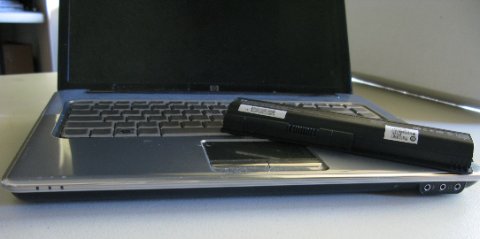
- Shut down the laptop completely. Disconnect the AC adapter.
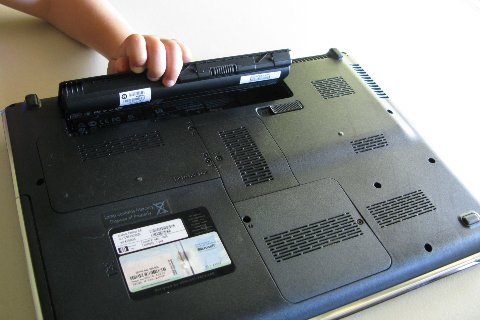
- If the battery is removable, remove it. If built-in, skip this sub-step.
- Hold the power button for 15 seconds to discharge all residual capacitor charge.
- Reconnect the battery (if removed), plug in the AC adapter, and power on. Check if charging resumes — this clears stuck power states in the EC firmware without any software changes.
Step 2 – Reinstall the Microsoft ACPI-Compliant Control Method Battery Driver
- Right-click the Start button and choose Device Manager.
- Expand Batteries. You should see two entries: Microsoft AC Adapter and Microsoft ACPI-Compliant Control Method Battery.
- Right-click Microsoft ACPI-Compliant Control Method Battery and choose Uninstall device. Do not check “Delete the driver software.”
- Click Action → Scan for hardware changes. Windows reinstalls the ACPI battery driver automatically within seconds.
- Check the battery icon in the taskbar. If it now shows charging, the driver instance was corrupted.
Per Microsoft’s power management documentation, “The ACPI control method battery driver reads charge state, capacity, and health data from the battery firmware via ACPI methods. A stale driver instance can cache incorrect charge data and block charging commands from reaching the battery controller.”
Step 3 – Disable HP Battery Care / Battery Health Manager
- Open HP Support Assistant → My devices → Settings → Battery Health Manager.
- If set to Maximize my battery health, it caps charging at 80% intentionally — this is not a fault, but looks like a charging problem if you are unaware.
- Switch to Let HP manage my battery charging or Full charge if you need 100%.
- Also check BIOS → Advanced → Battery Care Function. Some Pavilion models expose this in BIOS rather than the HP software. Disable it if present and full charging is needed.
Step 4 – Test With a Different Charger and Check the Charging Port
- Test with a compatible HP charger at the correct wattage for your model (check the label — typically 45W or 65W). Underpowered chargers trigger the “plugged in, not charging” state when the adapter cannot sustain running the laptop and charging simultaneously.
- Inspect the DC jack or USB-C port for bent pins, debris, or physical damage. Clean gently with a dry toothbrush or compressed air.
- If charging works with a different adapter, the original charger has failed — replace it with a genuine HP part or compatible third-party unit at the correct wattage.
Step 5 – Update HP BIOS and EC Firmware
- Open HP Support Assistant → My devices → Updates.
- Install any available BIOS/UEFI update. HP Pavilion BIOS updates frequently include EC firmware revisions that fix charging threshold bugs and improve compatibility with third-party replacement batteries.
- Keep the laptop plugged in during the BIOS update — the process requires stable power and will abort if battery is critically low.
- After updating, recalibrate the battery: charge to 100%, use on battery until automatic shutdown, then charge to 100% again without interruption to re-establish the battery gauge baseline.
Frequently Asked Questions
My HP Pavilion says “plugged in, not charging” at 80% — is it broken?
No — this is the Battery Health Manager feature intentionally capping charge at 80%. Disable it in HP Support Assistant or BIOS (Step 3) if you need full charge capacity.
Can I replace the HP Pavilion battery myself?
Most HP Pavilion models use internal batteries accessible after removing the bottom panel. Replacement batteries are available from HP and third-party suppliers — ensure the replacement matches the original part number to avoid ACPI communication issues.
My new replacement battery shows 0% and won’t charge — why?
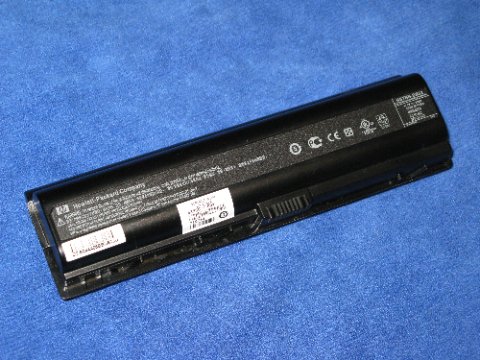
Some third-party batteries lack the HP authentication chip. The ACPI driver detects the missing authentication and blocks charging as a safety measure. Use a genuine HP battery or one explicitly listed as compatible with your specific Pavilion model number.
The battery charges to 100% but drains very quickly — is this the ACPI driver?
No — rapid drain indicates a battery that has lost capacity. Run powercfg /batteryreport in an admin command prompt and compare Designed Capacity vs Full Charge Capacity. If Full Charge Capacity is below 60% of Designed Capacity, the battery cells need replacement.
Conclusion
Most HP Pavilion battery charging failures are software or configuration issues rather than hardware faults. The ACPI battery driver reinstall in Device Manager resolves corrupted driver instances, the HP Battery Health Manager check catches intentional charge caps that look like failures, and a BIOS update addresses EC firmware bugs affecting third-party and aging batteries. Work through these steps before assuming the battery or charger needs replacement — in the majority of cases, the fix is free and takes under ten minutes.
Leave a Reply