HP Pavilion gaming laptop keyboard backlight not working on Windows 11? The keyboard is completely dark with no backlighting, the backlight key does nothing, or the backlight turns on briefly at startup and then goes off. HP Pavilion Gaming 15 and 16 models (15-dk, 15-ec, 16-a) include a single-zone backlit keyboard controlled by an HP-specific driver and the OMEN Gaming Hub or HP Keyboard Illumination software. When the backlight control driver is missing or the service is not running, the keyboard light cannot be turned on.

Why HP Pavilion Gaming Keyboard Backlight Stops Working on Windows 11
The HP Pavilion gaming keyboard backlight uses a dedicated controller that Windows 11 does not natively manage. Common failure causes:
- HP keyboard backlight service not running — the HP Keyboard Illumination service (HpiKbBl.exe) may fail to start after a Windows 11 update
- HP Support Assistant update removed backlight driver — HP SA sometimes reinstalls driver packages without the backlight component
- BIOS setting disabling backlight at boot — some HP Pavilion Gaming BIOS versions have an option to turn off keyboard illumination by default
- Wrong keyboard shortcut — HP Pavilion Gaming uses F5 for backlight on some models and the dedicated backlight key on others; the shortcut varies by year
Try the Backlight Key Combination
On most HP Pavilion Gaming models, press Fn+F5 or the dedicated backlight key (look for the backlight icon on your keyboard). On some models, pressing the key cycles through brightness levels: off → dim → bright. If the key press shows no response at all, the driver is the issue. If you see a brief OSD indicator but no light, it is a driver or hardware issue.
Fix HP Pavilion Gaming Keyboard Backlight on Windows 11
Step 1: Install HP Keyboard Backlight Driver
Go to HP Support, enter your Pavilion Gaming serial number, go to Drivers & Downloads → Keyboard & Input Devices. Download and install the HP Keyboard Illumination Driver or HP Backlight Control package. This installs the service that controls backlight brightness on HP Pavilion Gaming keyboards. Restart after install.
Step 2: Reinstall OMEN Gaming Hub or HP Command Center
On HP Pavilion Gaming 15 and 16 models from recent years, keyboard backlight is managed through HP OMEN Gaming Hub (older models) or HP Command Center (newer models). Check Start menu for either app. If not installed, download from the Microsoft Store or from HP Support. Open the app and look for a Keyboard or Lighting section to control backlight behavior.
Step 3: Check BIOS Keyboard Backlight Setting
Restart and press F10 at the HP logo to enter BIOS Setup. Go to Advanced → Device Options. Look for Keyboard Backlight or Keyboard Illumination. If set to Off or Disabled, change it to On. Save changes and exit. On some HP Pavilion Gaming models this BIOS setting overrides the OS driver completely.
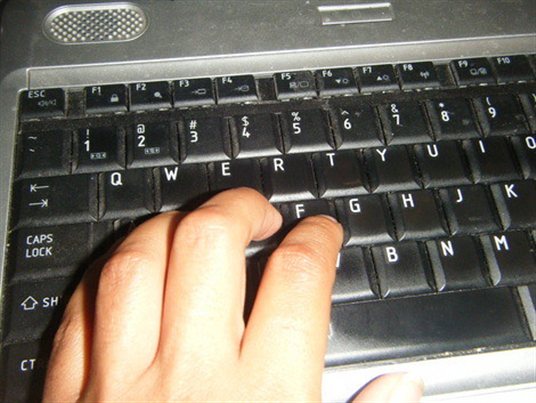
Per Kevin L., who is a Computer Science Student using an HP Pavilion Gaming 15-dk2065cl: “The backlight stopped working after the Windows 11 23H2 upgrade. HP Support showed the HP Keyboard Illumination Driver was missing from my driver list. Downloading and installing it brought the backlight back. The Fn+F5 shortcut that did nothing now cycles through three brightness levels.”
Frequently Asked Questions
HP Pavilion gaming keyboard backlight key does nothing — why?
The HP Keyboard Illumination Driver is missing. Go to HP Support, enter your laptop serial number, and download the Keyboard Backlight or Keyboard Illumination driver package. Install and restart. The Fn+F5 shortcut will then work to cycle through brightness levels.
HP Pavilion gaming keyboard backlight turns on at boot but turns off — fix?
The backlight service starts at boot but crashes. Open Services.msc, find HP Keyboard Illumination, right-click, Properties, set Startup type to Automatic. If the service is missing, reinstall the HP Keyboard Illumination Driver from HP Support.
HP Pavilion gaming keyboard backlight setting in BIOS — where to find?
Restart, press F10 at the HP logo to enter BIOS Setup. Navigate to Advanced, Device Options. Look for Keyboard Backlight or Keyboard Illumination and set it to On. Save and exit with F10. This setting takes priority over OS driver control.
HP OMEN Gaming Hub not showing keyboard lighting controls — fix?
Uninstall HP OMEN Gaming Hub from Apps, then reinstall from the Microsoft Store. Some versions of Gaming Hub do not support keyboard lighting on Pavilion Gaming models — you may need the HP Command Center app instead, which is available from HP Support for newer Pavilion Gaming models.
Conclusion
HP Pavilion gaming keyboard backlight not working on Windows 11 is fixed by installing the HP Keyboard Illumination Driver from HP Support, checking that HP OMEN Gaming Hub or HP Command Center is installed, and verifying the backlight is not disabled in BIOS under Advanced Device Options. The Fn+F5 shortcut only works when the HP backlight service is running, which requires the correct driver package.
Ryan holds a Computer Science degree and has over 20 years of hands-on experience with PC hardware, software, and driver troubleshooting. He is the author behind softwaredriverdownload.com, where he helps everyday users fix driver issues quickly and accurately.
Leave a Reply