Keyboard Fix
HP Pavilion Plus 14 Ghost Typing Keyboard Fix
HP Pavilion Plus 14 · Core Ultra 5 125H · Windows 11 · Keyboard ghosting
Ghost typing — where characters appear on screen without any key being pressed — on the HP Pavilion Plus 14 is usually caused by a stuck key, a driver glitch, or a Windows accessibility setting. In rare cases it can indicate a hardware issue with the keyboard membrane. Follow these steps to identify and fix the root cause.
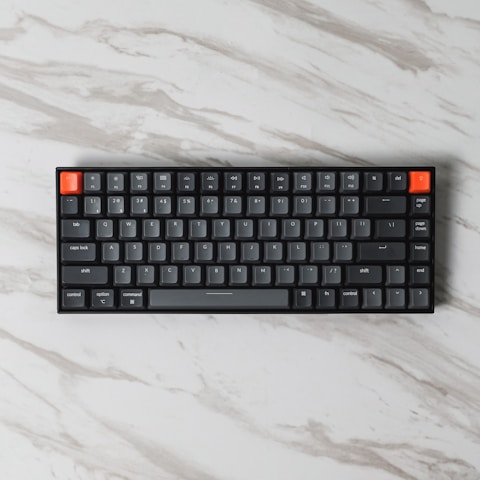
Fix 1 — Check for a physically stuck key
Press each key individually and confirm it springs back cleanly. A key with debris underneath can register as continuously held down, producing repeating characters. Gently press around any suspect key or use compressed air to clear debris from underneath the keycap.
Fix 2 — Disable Filter Keys
Go to Settings → Accessibility → Keyboard. Make sure Filter Keys is turned off. Filter Keys is an accessibility feature that can interfere with normal key repeat behavior, sometimes causing keys to register multiple times or ghost-input single presses as held-down events.

Fix 3 — Update or reinstall the keyboard driver
Open Device Manager → Keyboards. Right-click the keyboard entry and choose Update driver → Search automatically. If no update is found, right-click again and choose Uninstall device, then restart. Windows reinstalls the keyboard driver on boot and this often resolves software-level ghost input.
Fix 4 — Test with an external keyboard
Connect a USB keyboard and use only that for 10 to 15 minutes. If ghost typing stops completely, the issue is isolated to the built-in keyboard (hardware problem). If ghosting continues with the external keyboard, the issue is at the Windows or driver level and software fixes will work.
Fix 5 — Run HP Support Assistant
Install HP Support Assistant from the Microsoft Store. Run a full health check and apply any pending driver updates specifically for the keyboard subsystem. HP Support Assistant sometimes identifies and installs keyboard controller firmware fixes that are not available through Windows Update.
Hafiz, Kuala Lumpur: “My HP Pavilion Plus keyboard kept typing random characters. Found that the spacebar was slightly stuck with crumbs underneath. Clearing it with compressed air stopped the ghost typing immediately.”
Frequently Asked Questions
What causes ghost typing on the HP Pavilion Plus 14?
The most common cause is a stuck or partially depressed key, often caused by debris under the keycap. Other causes include corrupted keyboard driver state, Filter Keys being enabled, or in rare cases a faulty keyboard membrane that requires hardware replacement.
Can a Windows Update cause keyboard ghost input?
Yes. Windows Updates can replace or corrupt the keyboard driver, causing spurious key events. Uninstall the keyboard driver from Device Manager, restart, and reinstall to resolve update-related ghost typing.
Is ghost typing a sign of a failing keyboard on the Pavilion Plus 14?
Not necessarily. Physical debris, software driver issues, and accessibility settings are all more common causes than hardware failure. Only if all software fixes fail and the issue persists with a clean Windows installation should hardware replacement be considered.
How do I disable the built-in keyboard to use only an external one?
In Device Manager under Keyboards, right-click the built-in keyboard entry and choose Disable device. This turns off the built-in keyboard while leaving USB or Bluetooth keyboards functional. Re-enable it when you want to use the built-in keyboard again.
Ryan holds a Computer Science degree and has over 20 years of hands-on experience with PC hardware, software, and driver troubleshooting. He is the author behind softwaredriverdownload.com, where he helps everyday users fix driver issues quickly and accurately. Ryan has personally tested most of the fixes on this site across a range of Windows 10 and Windows 11 machines.
Leave a Reply