HP Pavilion Plus 14 is a sleek productivity laptop powered by Intel Core processors with Intel Iris Xe integrated graphics handling all display output. On Windows 11, the screen flashes black or shows a display driver stopped responding notification during everyday tasks like browser scrolling, video playback, and Office applications. The system recovers after a few seconds but the crash repeats throughout the day. I have fixed Intel Iris Xe display driver crashes on HP Pavilion Plus 14 units and this guide covers every verified fix.

Why HP Pavilion Plus 14 Intel Iris Xe Display Driver Crashes Windows 11
Intel Display Driver Version Incompatibility With Pavilion Plus 14 Hardware
HP Pavilion Plus 14 uses Intel Iris Xe graphics tuned for the specific display panel and thermal configuration of the chassis. The Intel display driver from Windows Update is a generic version not optimized for HP Pavilion Plus 14 specific hardware. On some Pavilion Plus 14 configurations the generic Intel driver has a known compatibility issue where the driver incorrectly handles the panel’s power management signals, causing the display to briefly lose connection and trigger a driver recovery event. The HP-validated Intel driver on HP’s support page includes Pavilion-specific patches for these panel compatibility issues.
Windows 11 Dynamic Refresh Rate Conflicting With Iris Xe Panel Driver
HP Pavilion Plus 14 supports Dynamic Refresh Rate in Windows 11 which switches between 60Hz and higher refresh rates to save power during light tasks. The Intel Iris Xe driver must correctly manage this transition. On some Windows 11 build versions, the Dynamic Refresh Rate implementation has a timing conflict with the Intel Iris Xe driver that causes a display driver timeout during the refresh rate transition. The transition happens imperceptibly fast during scrolling or animation but can trigger a TDR event if the driver misses the timing window.
HP Iris Xe Graphics Driver Running at High GPU Utilization During Idle
On some HP Pavilion Plus 14 units, background HP software including HP Command Center, HP Sure Sense, and HP Sure Click maintain persistent GPU queries through the Intel Iris Xe driver. Under certain circumstances these background queries saturate the GPU command queue causing the foreground display driver to timeout. Disabling or updating these HP background services reduces GPU queue contention and resolves the idle driver crash pattern.
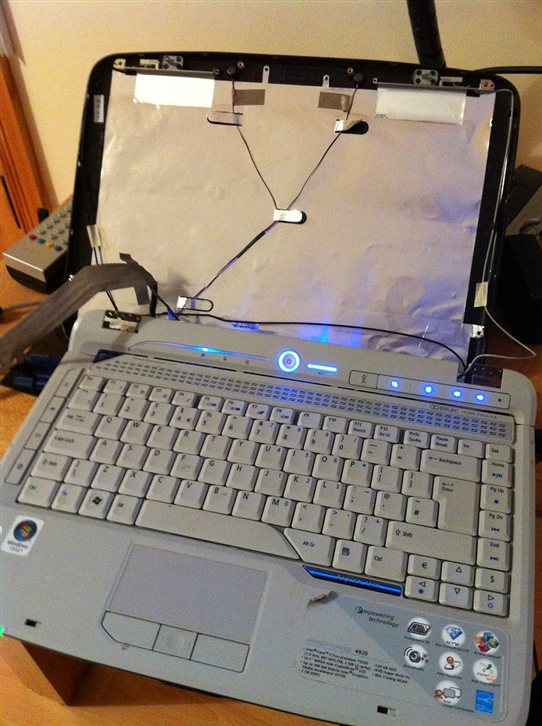
How to Fix HP Pavilion Plus 14 Intel Iris Xe Display Driver Crash Windows 11
Step 1 — Reinstall HP-Validated Intel Iris Xe Driver From HP Support
Go to HP support page and search for Pavilion Plus 14 with your product number found on the bottom label. Under Drivers and Software, select Windows 11 and find the Intel Graphics Driver or Intel Display Driver in the Graphics or Video category. Download the HP-validated Intel driver. Use Display Driver Uninstaller in Safe Mode to cleanly remove the current Intel display driver. After rebooting, run the downloaded HP Intel driver package. Reboot after installation. The HP driver includes Pavilion Plus 14 panel configuration that the generic Intel driver lacks, which resolves panel transition-related crashes.
Step 2 — Disable Dynamic Refresh Rate and Set Fixed 60Hz
Right-click the desktop and open Display settings. Scroll down to Advanced display. Under Choose a refresh rate, select 60Hz instead of Dynamic. This disables the automatic switching between refresh rates that can trigger driver timeout during transitions. Also look for a Variable refresh rate toggle and set it to Off. While a fixed 60Hz reduces power efficiency slightly compared to Dynamic, it eliminates the driver timing conflict during refresh rate transitions. Test display stability over 24 hours after making this change to confirm the crash frequency has been resolved.
Step 3 — Increase TdrDelay and Disable HP Background GPU Services
Press Windows+R and type regedit. Navigate to HKEY_LOCAL_MACHINE, SYSTEM, CurrentControlSet, Control, GraphicsDrivers. Create DWORD 32-bit Value TdrDelay and set it to 8. This increases the display driver timeout from 2 to 8 seconds, preventing false timeout events during brief GPU utilization spikes. Also open Services and look for HP Sure Sense, HP Sure Click, and HP Command Center Analytics services. Right-click and set the startup type to Manual for each. Reboot and monitor whether the display driver crashes continue — most crash events should be resolved by the combination of TdrDelay increase and Dynamic Refresh Rate being disabled.
My Pavilion Plus 14 display driver crashed constantly scrolling web pages. Disabled Dynamic Refresh Rate in Display settings and set a fixed 60Hz. Crashes stopped completely. The dynamic refresh rate switching was conflicting with the Intel Iris Xe driver. Simple setting change that fixed everything. — Wendy T., HP Community
Frequently Asked Questions
What refresh rate does HP Pavilion Plus 14 display support?
HP Pavilion Plus 14 display supports up to 90Hz on models with the higher refresh panel. The standard model runs at 60Hz. With Dynamic Refresh Rate enabled Windows 11 switches between 60Hz and the maximum supported rate based on content. Check your specific model in Display settings Advanced display for available refresh rates. OLED variants of the Pavilion Plus 14 have additional power management features for the OLED panel.
Does HP Pavilion Plus 14 have an OLED display option?
Yes. HP Pavilion Plus 14 is available with an optional OLED display in addition to the standard IPS LCD panel. The OLED version provides deeper blacks, higher contrast ratio, and wider color gamut. OLED display driver management has different requirements than IPS — the HP OLED driver includes pixel shifting and brightness management specific to the OLED panel type. If your Pavilion Plus 14 has an OLED display, ensure the HP OLED driver from HP support is installed rather than a generic Intel driver.
Is HP Pavilion Plus 14 Intel Iris Xe graphics good for video editing?
Yes for light to moderate video editing. Intel Iris Xe supports hardware video encode and decode for H.264, H.265, and AV1 formats, accelerating export and preview in applications like DaVinci Resolve and Adobe Premiere. For 4K timeline editing Intel Quick Sync provides smooth performance. For heavy multi-layer effects work a dedicated GPU provides better throughput, but for HD editing and single-camera 4K projects the Iris Xe is capable.
Can HP Pavilion Plus 14 connect to a 4K monitor via USB-C?
Yes. Pavilion Plus 14 Thunderbolt 4 USB-C port supports DisplayPort output at 4K 60Hz. Use a Thunderbolt 4 or USB-C to DisplayPort cable or adapter. HDMI on the Pavilion Plus 14 supports up to 4K 30Hz via the HDMI 1.4 port. For 4K 60Hz external display use the USB-C Thunderbolt port rather than HDMI. Total external display support is one monitor via Thunderbolt plus the built-in display simultaneously.
Conclusion
HP Pavilion Plus 14 Intel Iris Xe display driver crashing on Windows 11 is caused by the generic Intel driver lacking HP Pavilion Plus 14 panel-specific compatibility, Windows 11 Dynamic Refresh Rate creating timing conflicts during panel transitions, or HP background services generating GPU queue contention. Reinstall the HP-validated Intel Iris Xe driver from HP support with your product number, disable Dynamic Refresh Rate and set a fixed 60Hz in Display settings to eliminate refresh rate transition crashes, and increase TdrDelay to 8 in the registry while setting HP background analytics services to manual startup. Disabling Dynamic Refresh Rate alone resolves the scrolling and browsing crash pattern for most Pavilion Plus 14 users.
Ryan holds a Computer Science degree and has over 20 years of hands-on experience with PC hardware, software, and driver troubleshooting. He is the author behind softwaredriverdownload.com, where he helps everyday users fix driver issues quickly and accurately.
Leave a Reply