An HP Pavilion trackpad that stops responding to touch is almost always a driver issue — specifically a corrupted or incompatible Synaptics or Elan driver that Windows installed automatically. This guide covers reinstalling the correct HP-specific driver and verifying that the trackpad hardware is functioning correctly in Windows 10.
Step 1 – Check Whether the Trackpad Is Disabled
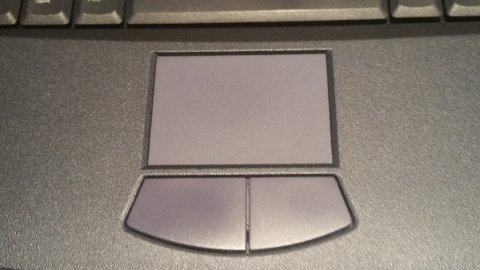
- Press Fn + F7 (or the key with a trackpad icon, which varies by Pavilion model). Many HP Pavilion keyboards have a dedicated trackpad disable shortcut that is accidentally triggered.
- Check Settings → Bluetooth & devices → Touchpad. Confirm the Touchpad toggle is set to On.
- If a USB mouse is connected, some Pavilion models automatically disable the trackpad. Disconnect the USB mouse and test the trackpad again.
Step 2 – Identify Your Trackpad Driver Type

- Right-click Start → Device Manager.
- Expand Mice and other pointing devices. The trackpad appears as one of the following:
- Synaptics SMBus TouchPad — Synaptics driver required
- ELAN SMBus Driver or ELAN Input Device — Elan driver required
- HID-compliant mouse — generic driver installed; correct driver missing
- If the entry shows a yellow exclamation mark or the device is listed under Other devices, the driver is missing or failed to load.
Step 3 – Uninstall the Current Driver
- In Device Manager, right-click the trackpad entry.
- Select Uninstall device. Check Delete the driver software for this device if the option appears.
- Restart the laptop. Do not reconnect to the internet yet — this prevents Windows from reinstalling a generic HID driver before the correct Synaptics package is applied.
Step 4 – Download and Install the HP Synaptics Driver
- From a second device or after noting the URL beforehand, go to support.hp.com and enter your HP Pavilion model number.
- Navigate to Drivers → Mouse, Keyboard & Input Devices.
- Download the driver listed as Synaptics TouchPad Driver or Elan TouchPad Driver, matching your trackpad type identified in Step 2.
- Run the installer. The Synaptics package installs both the kernel driver and the Synaptics control panel component.
- Restart when prompted. After reboot, the trackpad should respond to single-finger movement and click.
Per HP’s support documentation for HP Pavilion series, “Use only the HP-customized Synaptics or Elan driver provided on the HP Support website. The standard Synaptics driver from synaptics.com does not include HP-specific gesture configurations and may cause reduced functionality or unresponsive behavior.”
Step 5 – Configure Synaptics Settings and Verify Gestures
- After installation, open Settings → Bluetooth & devices → Touchpad. Confirm all gestures (two-finger scroll, tap-to-click, three-finger swipe) are enabled.
- Access the Synaptics control panel via Control Panel → Mouse → Device Settings tab for advanced sensitivity and zone configuration.
- If two-finger scroll or tap-to-click still does not work after reinstallation, open Device Manager and confirm the driver version matches the one downloaded from HP Support (right-click the trackpad entry → Properties → Driver tab).
Step 6 – Run HP Hardware Diagnostics If the Trackpad Remains Unresponsive
- Restart the laptop and press F2 at the HP logo to enter HP PC Hardware Diagnostics UEFI.
- Select Component Tests → Keyboard/Mouse → Pointing Device.
- Follow the on-screen instructions to move the pointer and tap. If the diagnostic reports a hardware failure, the trackpad ribbon cable or trackpad module requires physical inspection.
Frequently Asked Questions
The trackpad moves the cursor but clicking does not work after reinstalling Synaptics.
Open Device Manager and check for a separate entry labeled Synaptics Pointing Device or PS/2 Compatible Mouse. Multiple driver instances can conflict. Uninstall all pointing device entries, restart, and reinstall the HP Synaptics driver fresh.
The HP Support page does not list a Synaptics driver for my Pavilion model.
Enter the model number without the suffix characters (e.g., HP Pavilion 15 instead of 15-cs3xxx) and use the Windows 10 filter on the driver page. If still absent, the model may use an Elan trackpad — download the Elan TouchPad driver instead.
After a Windows 10 update, the trackpad stopped working again.
Windows Update occasionally reinstalls a generic HID trackpad driver over the Synaptics one. To prevent this, after reinstalling the Synaptics driver, open Device Manager, right-click the trackpad → Update driver → Browse my computer → Let me pick → uncheck Show compatible hardware and choose the Synaptics entry manually. This locks the driver selection.
My HP Pavilion trackpad is physically loose or spongy — is that a driver issue?
No. Physical looseness in the trackpad (excessive travel before registering a click, or the surface wobbling) is a hardware issue — a worn click mechanism or loose mounting bracket. Driver reinstallation will not fix it. This requires opening the laptop and tightening or replacing the trackpad assembly.
Conclusion
The most reliable fix for an unresponsive HP Pavilion trackpad in Windows 10 is to fully uninstall the current driver and install the HP-specific Synaptics or Elan package from HP Support, not the generic version from the manufacturer’s website. After installation, verify gesture settings in Windows Touchpad settings and confirm the driver version in Device Manager. If driver reinstallation does not restore responsiveness, HP’s built-in UEFI hardware diagnostic isolates whether the fault is software or physical within minutes.
Leave a Reply