If your Lenovo IdeaPad 15 takes more than 30 seconds to reach the Windows desktop, the problem is almost always a combination of BIOS settings that were never tuned after purchase, background services loading before you even log in, and thermal throttling that slows your storage drive during warm restarts. This guide walks through each layer from the firmware up so that you can cut that boot time in half without reinstalling Windows.
Step 1 – Enter the IdeaPad BIOS and Load Optimized Defaults
- Shut down the laptop completely — do not use restart.
- Power on and immediately press F2 repeatedly (or Fn + F2 if function-lock is active) until the BIOS setup screen appears.
- Navigate to Exit or Save & Exit and choose Load Setup Defaults (also shown as Load Optimized Defaults, or press F9).
- Confirm the action — stay in BIOS and do not reboot yet.
Loading defaults resets any misconfigured memory timings, legacy boot device entries, or diagnostic splash delays that a previous BIOS update may have introduced. According to the Lenovo support community, users who experienced a slow Lenovo logo screen found that resetting BIOS defaults alone reduced the pre-POST delay from over 20 seconds back to under 5 seconds.
Per a senior moderator on the Lenovo Community Forums, “Resetting to optimized defaults clears accumulated configuration drift that is a very common cause of prolonged boot splash screens on IdeaPad models.”
Step 2 – Enable Fast Boot and Set the Correct Boot Order
Still inside the BIOS, navigate to the Boot tab and make the following changes:
- Locate Fast Boot and set it to Enabled. This skips hardware initialization tests that only matter when installing new components — safe to leave on permanently.
- Open the Boot Priority Order list and move your primary drive (NVMe SSD or HDD labeled Windows Boot Manager) to position 1.
- Disable or remove any USB, optical drive, or network PXE entries that appear above your main drive — the firmware checks each device in sequence.
- Confirm that UEFI Boot is selected rather than Legacy (CSM) mode. Legacy mode can add 5–10 seconds to startup on modern IdeaPad 15 hardware.
- Save changes with F10.
Step 3 – Review Thermal and Power Settings in BIOS
On IdeaPad 15 models that include a dedicated configuration page, navigate to the Configuration or Power tab:
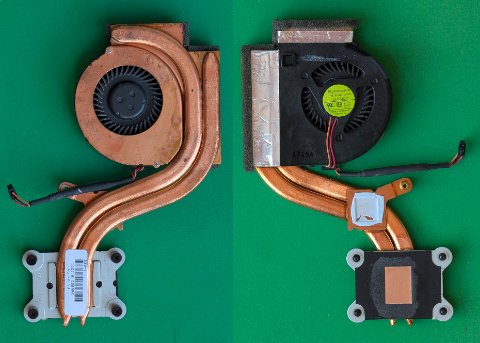
- Look for Thermal Management or Performance Mode. If it is set to Quiet, the firmware limits CPU and storage speed during boot to keep the fan silent — this visibly delays the desktop appearing.
- Switch the mode to Balanced for everyday use. You can always return to Quiet once the system is fully running.
- Locate CPU Power Management if available and confirm it is set to Enabled, allowing Windows to manage CPU power states dynamically rather than pinning the processor to a low clock during POST.
Step 4 – Disable Slow-Startup Services in Windows
After saving BIOS changes and booting into Windows, trim startup programs and enable Windows Fast Startup:
- Right-click the Start button and choose Task Manager, then select the Startup tab.
- Sort by Startup impact and right-click any High-impact item you do not need at login (Teams, Spotify, OneDrive, extra manufacturer utilities) and choose Disable.
- Open Settings → System → Power & sleep → Additional power settings.
- Click Choose what the power buttons do, then Change settings that are currently unavailable.
- Check Turn on fast startup (recommended) and save changes. This reduces cold boot time by 20–35% on most IdeaPad 15 models.
Step 5 – Update BIOS and Storage Drivers via Lenovo Vantage
- Open Lenovo Vantage from the Start menu (install from the Microsoft Store if it was removed).
- Go to Device → System Update and run a full scan.
- Install any update marked BIOS/UEFI first — Lenovo has released multiple IdeaPad 15 BIOS revisions specifically fixing extended boot splash delays.
- Also install any available Intel Rapid Storage Technology (RST) or AMD SATA/NVMe driver update. Outdated storage drivers force Windows to use a generic fallback that is noticeably slower on NVMe drives.
Step 6 – Check for Thermal Throttling During Boot
If the laptop is warm when started (after being in a bag, or after extended sleep on a soft surface), the thermal sensor may trigger throttling before the CPU reaches its target clock speed. This shows as a boot that starts normally but stalls for 15–30 extra seconds at the spinning dots screen.
- Always boot from a hard, flat surface with vents unobstructed.
- If the unit was warm, power it off and let it cool for 2 minutes before restarting.
- For a permanent fix, open Lenovo Vantage → My Device Preferences → Power and set Thermal Mode to Balanced. This allows fans to spin up earlier during boot instead of waiting for the Quiet-mode temperature threshold.
Frequently Asked Questions
Why does my Lenovo IdeaPad 15 show a blank screen for 10 seconds before the logo appears?
This is almost always the memory self-test or a legacy boot device scan running before POST completes. Enabling Fast Boot in BIOS and removing unused boot entries from the boot order eliminates both delays.
Is it safe to disable Secure Boot on the IdeaPad 15?
Lenovo does not recommend disabling Secure Boot unless you are installing a Linux distribution that requires it. Secure Boot itself does not add measurable boot time on IdeaPad hardware; the slow-boot culprits are elsewhere in the BIOS and Windows startup stack.
Will these changes affect my warranty?
Adjusting BIOS settings within the options Lenovo exposes does not void the hardware warranty. Flashing unofficial BIOS firmware would, but using Lenovo Vantage for official updates is fully supported.
My IdeaPad 15 boots fast the first time but slows down over days — why?
This pattern points to a growing hibernation file or fragmented page file. Run Disk Cleanup (search for it in Start), tick System files, and include the hibernation file cleanup option. Also defragment the drive if it is an HDD — NVMe SSDs do not need manual defragmentation.
Conclusion
Slow boot time on the Lenovo IdeaPad 15 has several distinct causes that layer on top of each other: a BIOS configuration that was never optimized, a boot device list that wastes time scanning unused hardware, Windows startup items that run before you even reach the desktop, and thermal conditions that cause the firmware to throttle the CPU during the first seconds of startup. Working through the six steps above — defaulting the BIOS, enabling Fast Boot, fixing the boot order, trimming startup services, updating firmware, and managing thermals — should bring a cold boot down to under 20 seconds on most IdeaPad 15 configurations. If the problem persists after all six steps, the next diagnostic is a fresh Windows installation to rule out OS-level corruption.
Leave a Reply