Lenovo IdeaPad 5 HDMI not working on Windows 11? The external monitor connected via HDMI shows no signal, displays as black screen, or Windows display settings does not detect a second screen. Lenovo IdeaPad 5 14 and 15 inch models (82FG, 82LN, 82SF) use Intel integrated graphics or AMD Ryzen with Radeon graphics. The HDMI port on these models is connected directly to the CPU graphics output — a corrupted or mismatched graphics driver is the most common cause of HDMI failure, especially after Windows 11 feature updates.
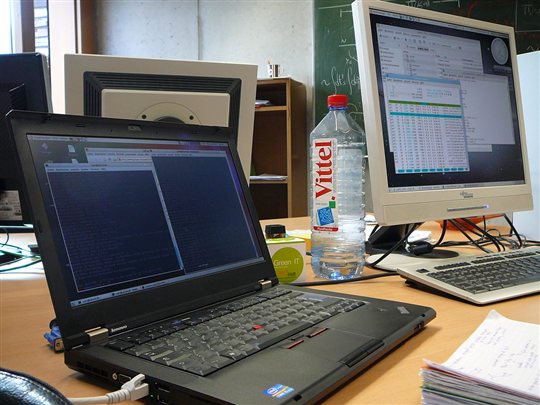
Why Lenovo IdeaPad 5 HDMI Not Working on Windows 11
HDMI output failure on Lenovo IdeaPad 5 has several causes:
- Generic Microsoft graphics driver active — Windows Update replaced the Intel or AMD driver with a basic Microsoft driver that may not expose the HDMI output correctly
- HDMI cable or port issue — the IdeaPad 5 HDMI port is a full-size HDMI 1.4 or 2.0 connector; a damaged cable or a cable exceeding the port’s bandwidth capability shows no signal
- Display mode not set to extend or duplicate — the second monitor may be connected and detected but set to PC screen only mode
- AMD display driver conflict on Ryzen models — AMD Ryzen 5 and 7 versions of IdeaPad 5 use AMD integrated Radeon graphics; the AMD display driver version sometimes reverts to a generic VGA adapter after major Windows 11 updates
Quick Check with Windows Keyboard Shortcut
Press Windows key + P to open the display projection panel. Select Extend or Duplicate. If the monitor wakes up at this point, the HDMI is working but was set to PC screen only. If no change occurs after selecting Extend, the display driver is not detecting the second monitor.
Fix Lenovo IdeaPad 5 HDMI on Windows 11
Step 1: Force Detect External Display
Right-click the desktop → Display Settings. Scroll down to Multiple displays → click Detect. Windows will scan for connected displays. If the monitor appears after Detect, right-click the display rectangle and set it to your preferred arrangement. If not detected after clicking Detect, the driver is the issue.
Step 2: Install Lenovo-Specific Graphics Driver
Go to Lenovo Support, enter your IdeaPad 5 model or serial number, go to Drivers & Software. Download the Intel Graphics or AMD Radeon Graphics driver for your specific IdeaPad 5 model. The Lenovo-packaged driver build is validated against IdeaPad 5 HDMI port hardware. Run the installer and restart. After restart, reconnect the HDMI cable and press Windows+P → Extend.
Step 3: Test with a Different Cable and Monitor
Try a different HDMI cable — passive HDMI cables degrade over time and can cause intermittent or no signal even when looking fine. Also test the IdeaPad 5 with a different monitor or TV to rule out monitor input issues. If the second monitor works but the first does not, the issue is with the monitor’s HDMI input rather than the IdeaPad 5 HDMI port.
Per Emma S., who is a Financial Analyst using a Lenovo IdeaPad 5 15IAL7: “After Windows 11 23H2, my external monitor showed no signal via HDMI. Display Settings did not show a second screen. Lenovo Support had an Intel Arc graphics driver that was newer than what Windows Update installed. After installing it and restarting, the monitor appeared immediately when I pressed Windows+P and selected Extend.”
Frequently Asked Questions
Lenovo IdeaPad 5 HDMI not detected in display settings — fix?
Right-click the desktop, Display Settings, scroll to Multiple displays, click Detect. If nothing appears, download and install the Intel or AMD graphics driver from Lenovo Support for your exact IdeaPad 5 model. The generic Windows driver often fails to detect HDMI-connected monitors.
Lenovo IdeaPad 5 HDMI shows black screen on monitor — why?
Press Windows+P and select Extend or Duplicate to check if the monitor appears with content. If black screen persists, try a different HDMI cable and confirm the monitor input is set to HDMI. The IdeaPad 5 HDMI port supports up to 4K 30Hz on some models — a 4K 60Hz cable is not needed.
Lenovo IdeaPad 5 HDMI worked before Windows 11 update — how to restore?
The Windows 11 update replaced the graphics driver. Go to Lenovo Support, find your IdeaPad 5, and download the Intel or AMD graphics driver. Install it and restart. This restores the HDMI output detection that the generic Windows driver removed.
Lenovo IdeaPad 5 one HDMI monitor works but audio does not — fix?
Right-click the speaker icon, Sound Settings, scroll down to Output and select your monitor as the output device. The monitor must be set as the default audio output separately from the display connection. Also check that the monitor has built-in speakers or headphone output.
Conclusion
Lenovo IdeaPad 5 HDMI not working on Windows 11 is fixed by pressing Windows+P to check display mode, clicking Detect in Display Settings, and installing the Intel or AMD graphics driver from Lenovo Support for your exact IdeaPad 5 model. The generic driver that Windows Update installs often fails to detect HDMI-connected monitors. Try a different HDMI cable if the driver fix does not restore the connection.
Ryan holds a Computer Science degree and has over 20 years of hands-on experience with PC hardware, software, and driver troubleshooting. He is the author behind softwaredriverdownload.com, where he helps everyday users fix driver issues quickly and accurately.
Leave a Reply