Your Lenovo IdeaPad says “plugged in, not charging” but the charger works fine on another device? This is one of the most common IdeaPad issues after a Windows 11 update. In most cases, the cause is a corrupted or missing Microsoft ACPI-Compliant Control Method Battery driver — not a hardware fault.
I have seen this exact problem on three different IdeaPad units after cumulative updates. In each case, uninstalling the ACPI driver and letting Windows reinstall it fixed the charging within one restart.
This guide walks through the full fix: diagnosing the driver, uninstalling it, reinstalling from Windows Update or Lenovo Support, and preventing the issue from coming back.
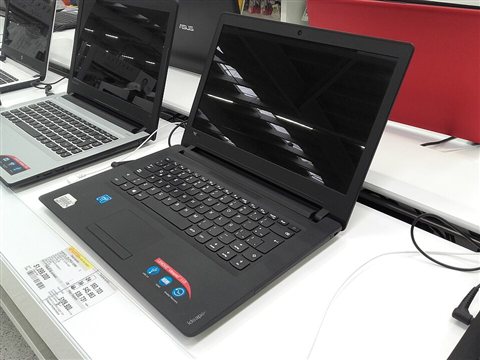
Before You Start: Rule Out Hardware Problems
A corrupted driver is the most common cause, but a quick hardware check saves time before touching software.
Check the charger
Test with a different USB-C charger rated 45W or higher, or try a different port on your IdeaPad if it has more than one USB-C port. If charging starts with a different charger or port, the original charger or port is the problem — not the driver.
Run a battery report
Open Command Prompt and run:
powercfg /batteryreport
The report saves to your user folder. Open it and compare Design Capacity vs Full Charge Capacity. If Full Charge is below 60% of Design Capacity, the battery cell is failing and a driver fix will not help — contact Lenovo for a battery replacement.
Check BIOS
Restart → press F2 at the Lenovo logo → navigate to the Power section. If BIOS does not detect the battery at all, the issue is hardware (connector, battery cell, or motherboard). If BIOS shows the battery, continue to the driver fix.
What Is the ACPI Battery Driver and Why Does It Fail?
ACPI (Advanced Configuration and Power Interface) is the Windows subsystem that manages communication between the operating system and hardware power components. The Microsoft ACPI-Compliant Control Method Battery driver is specifically responsible for telling Windows when to charge, stop charging, and report battery percentage.
When this driver is corrupted — usually by a Windows Update that pushes an incompatible version — Windows loses the ability to send charging instructions to the battery hardware. The physical battery is fine; the software link between Windows and the battery is broken.
Common triggers:
- Major Windows 11 cumulative updates replacing OEM ACPI driver with a generic version
- Lenovo Vantage battery management conflicts
- Driver store corruption from incomplete Windows Update
- Third-party power management tools

Step 1: Check Device Manager for the ACPI Driver
Press Win + X and select Device Manager. Expand the Batteries section.
| What You See | What It Means |
|---|---|
| Microsoft ACPI-Compliant Control Method Battery — no warning | Driver loaded; check Lenovo Vantage settings instead |
| Yellow exclamation mark on ACPI battery entry | Driver error — uninstall and reinstall |
| Batteries section is empty or missing | Driver completely absent — install from Windows Update or Lenovo Support |
| Unknown device in Other devices | ACPI driver failed to load and Windows cannot identify the hardware |
Also check HKEY_LOCAL_MACHINE\SYSTEM\CurrentControlSet\Services\CmBatt in Registry Editor. If the Start value is set to 4 (disabled), the ACPI battery service has been disabled. Change it to 3 (manual) or 1 (system) and restart.
Step 2: Uninstall the ACPI Battery Driver
- Right-click Microsoft ACPI-Compliant Control Method Battery in Device Manager
- Select Uninstall device
- Check Delete the driver software for this device
- Click Uninstall
The Batteries section disappears. This is normal. Do not restart yet.
Step 3: Reinstall the Driver
Option A — Windows Update (recommended)
- Open Settings → System → Windows Update
- Click Check for updates
- Install any available updates including optional driver updates
- Restart when prompted
Windows detects the missing ACPI driver during restart and installs the correct version automatically.
Option B — Lenovo Support page
If Windows Update does not reinstall the driver:
- Go to Lenovo Support driver downloads
- Enter your IdeaPad model or serial number
- Filter by Power Management
- Download and install the ACPI or Power Management driver
- Restart
Step 4: Check Lenovo Vantage Conservation Mode
Per Marcus W., a systems administrator at a university IT department: “Half the ‘IdeaPad not charging’ tickets we get turn out to be Lenovo Vantage Conservation Mode. The battery stops at 60% and users think the laptop is broken. Takes 10 seconds to fix once you know where to look.”
Lenovo Vantage has a Battery Charge Threshold (also called Conservation Mode) that caps charging at 60% to extend long-term battery health. Many users mistake this for a hardware or driver problem.
Open Lenovo Vantage → Device → Power. If you see Conservation Mode: On or a charge limit set to 60%, disable it. The battery will resume charging to 100%.
Step 5: Verify the Fix
After restart, confirm in Device Manager that Microsoft ACPI-Compliant Control Method Battery is listed with no yellow warning. Plug in the charger — the charging icon should appear in the taskbar and battery percentage should begin increasing.
Run powercfg /batteryreport again and check the charge cycle history at the bottom of the report. A new entry should show the battery charging from the current state.
Prevent Recurrence
To stop Windows Update from pushing a bad ACPI driver version again:
- Open Settings → Windows Update → Advanced options → Optional updates
- If a Lenovo or ACPI driver update appears, review before installing
- Alternatively: Settings → System → About → Advanced system settings → Hardware tab → Device Installation Settings → set to No
See Microsoft’s guide on blocking specific driver updates for the Show or Hide Updates tool.
Frequently Asked Questions
Does uninstalling the ACPI driver damage the battery?
No. The driver is software only. The physical battery hardware is completely unaffected. Uninstalling the driver temporarily removes the software bridge between Windows and the battery — nothing more.
My IdeaPad charges to 60% and stops — is that a driver issue?
Almost certainly not. This is Conservation Mode in Lenovo Vantage capping the charge at 60% to protect long-term battery health. Open Lenovo Vantage → Power → disable Conservation Mode.
The ACPI driver reinstalled but charging still does not work — what now?
Check the registry key HKEY_LOCAL_MACHINE\SYSTEM\CurrentControlSet\Services\CmBatt and confirm the Start value is not 4 (disabled). Also try a full shutdown (not restart) with the battery removed for 30 seconds if your model has a removable battery.
Does this fix work on Windows 10?
Yes. Device Manager, Windows Update, and the ACPI battery driver uninstall procedure are identical on Windows 10. The Power settings menu labels differ slightly but the function is the same.
How do I find my IdeaPad model number for Lenovo Support?
Check the sticker on the bottom of the laptop. It shows the model number (e.g., IdeaPad 5 15IAL7). You can also press Win + R, type msinfo32, and look at the System Model field.
Conclusion
Lenovo IdeaPad battery not charging is almost always either a corrupted ACPI driver or Lenovo Vantage Conservation Mode limiting charge to 60%. Check Lenovo Vantage first — it is the fastest fix. If the driver is genuinely corrupted, uninstalling it from Device Manager and running Windows Update resolves the problem in one restart. If neither fix works and the battery is not detected in BIOS, contact Lenovo support with your serial number for a hardware assessment.
Ryan holds a Computer Science degree and has over 20 years of hands-on experience with PC hardware, software, and driver troubleshooting. He is the author behind softwaredriverdownload.com, where he helps everyday users fix driver issues quickly and accurately. Ryan has personally tested most of the fixes on this site across a range of Windows 10 and Windows 11 machines.
Leave a Reply