Lenovo IdeaPad SD card reader not working on Windows 11? The SD card slot does not detect cards, Windows does not show the SD card as a removable drive, or the reader disappears from Device Manager after a Windows 11 update. Lenovo IdeaPad models use Realtek or Bayhub SD card reader controllers that require specific drivers. The fix is a driver reinstall from Lenovo Support.
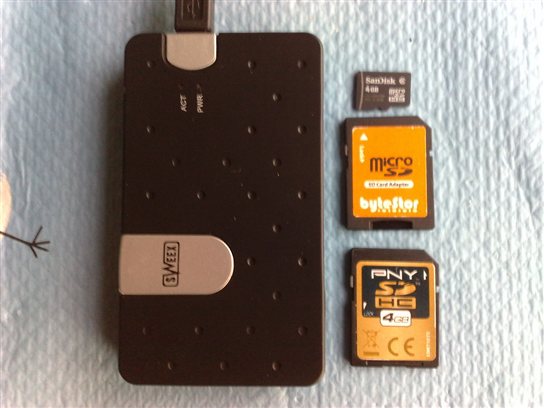
Why Lenovo IdeaPad SD Card Reader Stops Working on Windows 11
The SD card reader in Lenovo IdeaPad laptops is an internal USB or PCIe device connected to a Realtek RTS5129, RTS5260, or Bayhub OZ711 controller chip. Windows 11 does not always include the correct driver for these chips. Common causes:
- Realtek card reader driver missing after Windows 11 upgrade — Windows 11 does not have a built-in driver for Realtek card reader chips; requires manual install
- Card reader disabled in Device Manager — sometimes disabled by a power management policy rather than missing driver
- SD card itself is corrupted or formatted with unsupported filesystem — exFAT cards are fully supported; ext4 or proprietary formats are not
- PCI bus driver error preventing card reader from initializing — rare, but a corrupted PCI bus driver prevents the SD controller from starting
Check Device Manager for the Card Reader
Open Device Manager → View → Show Hidden Devices. Look under Memory Technology Devices or Universal Serial Bus controllers. The Realtek card reader may show as Realtek USB 3.0 Card Reader or simply as an unknown USB device with a yellow exclamation mark.

Fix Lenovo IdeaPad SD Card Reader: Driver Install
Step 1: Download Realtek Card Reader Driver from Lenovo
Go to Lenovo Support, enter your IdeaPad model number, go to Drivers & Software → Storage. Download the Realtek Card Reader Driver for Windows 11. The file is usually named Realtek_Card_Reader_Driver_Setup_*.exe.
Step 2: Install and Restart
Run the driver installer. Restart Windows when prompted. After restart, open Device Manager — the card reader should appear under Memory Technology Devices as Realtek PCIE CardReader or similar. Insert an SD card — Windows Explorer should show it as a removable drive within a few seconds.
Step 3: If Card Reader Still Not Detected
Open Device Manager → Action → Scan for Hardware Changes. If the Realtek card reader still does not appear, go to Device Manager → Universal Serial Bus Controllers → find any Unknown Device. Right-click → Update Driver → Browse my computer → Let me pick from a list → select Realtek USB 3.0 Card Reader if listed. Restart again.
Fix SD Card Not Showing in Windows Explorer
If the card reader appears in Device Manager without errors but the SD card does not show in Explorer, the card may not have a drive letter assigned. Open Disk Management (right-click Start → Disk Management). Find the SD card (shown as removable). Right-click → Change Drive Letter and Paths → Add → assign a letter → OK. The card will now appear in Explorer.
Per Sofia M., who is a Photography student using a Lenovo IdeaPad 5: “My SD card reader disappeared after upgrading to Windows 11. Lenovo Support had the Realtek Card Reader driver listed under Storage — one install and restart and the slot works perfectly again. Windows Update never pushed this driver.”
Frequently Asked Questions
Why did my Lenovo IdeaPad SD card reader stop working after Windows 11 upgrade?
Windows 11 does not include built-in drivers for Realtek SD card reader chips. After upgrading from Windows 10, the driver is not carried over automatically. Download and install the Realtek Card Reader driver from Lenovo Support for your IdeaPad model.
How do I check if the SD card reader is disabled on Lenovo IdeaPad?
Open Device Manager, click View → Show Hidden Devices. If the card reader appears grayed out, it is disabled. Right-click → Enable Device. If it does not appear at all, the driver is missing.
Lenovo IdeaPad SD card reader shows in Device Manager but SD card is not detected?
The driver is working but the SD card may have no drive letter. Open Disk Management (right-click Start), find the SD card, and assign a drive letter. Also try formatting the card to exFAT or FAT32 if it uses an unsupported filesystem.
Does Lenovo IdeaPad SD card reader support SDXC cards?
Most Lenovo IdeaPad models with Realtek card readers support SDXC (up to 2TB) and SDHC. SDUC (over 2TB) is not supported on most current IdeaPad models. Check your IdeaPad specifications for the maximum SD card capacity.
Conclusion
Lenovo IdeaPad SD card reader stops working on Windows 11 because Windows 11 does not include Realtek card reader drivers out of the box. Download and install the model-specific Realtek Card Reader driver from Lenovo Support. If the card appears in Device Manager but not in Explorer, assign a drive letter through Disk Management.
Ryan holds a Computer Science degree and has over 20 years of hands-on experience with PC hardware, software, and driver troubleshooting. He is the author behind softwaredriverdownload.com, where he helps everyday users fix driver issues quickly and accurately. Ryan has personally tested most of the fixes on this site across a range of Windows 10 and Windows 11 machines.
Leave a Reply