Lenovo IdeaPad Slim 3 Gen 9 — USB Keyboard Not Detected Fix
A USB keyboard not detected on the Lenovo IdeaPad Slim 3 Gen 9 Core i5-120U means the keyboard is plugged into a USB-A port but Windows does not register keystrokes from it. The Slim 3 Gen 9 has two USB 3.2 Gen 1 Type-A ports and one USB 2.0 Type-A port. Common causes are the USB port power management shutting off the port, Filter Keys preventing input registration, or the USB controller needing a driver update.
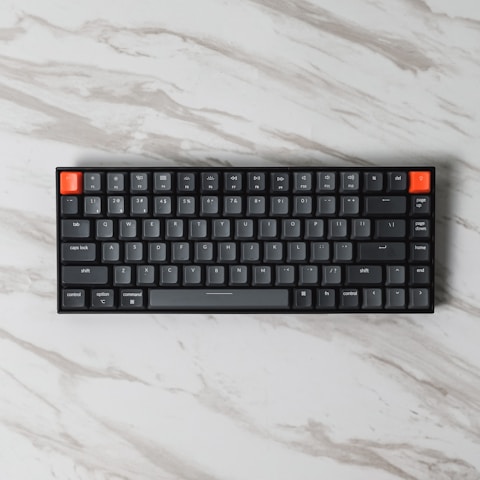
Fix 1: Test All USB Ports and Try a Different Cable First step
Try the keyboard in each of the three USB-A ports on the Slim 3 Gen 9. Also try a different USB cable if the keyboard has a detachable cable. If the keyboard works in one port but not another, the non-working port may have a power management issue or a failed connector. Testing all ports also confirms whether the keyboard itself is functional.
Fix 2: Disable USB Selective Suspend
Open Power Options → Change plan settings → Change advanced power settings → USB settings → USB selective suspend setting and set it to Disabled. USB selective suspend allows Windows to power off USB ports when no activity is detected. On the Core i5-120U platform, this can sometimes suspend a USB keyboard port and not wake it when keys are pressed, making the keyboard appear unresponsive. Disabling selective suspend keeps all USB ports active continuously.
Fix 3: Disable Filter Keys
Open Settings → Accessibility → Keyboard and ensure Filter Keys is Off. Filter Keys can be accidentally enabled by holding the right Shift key for 8 seconds. When enabled, Filter Keys ignores brief or repeated keystrokes, which can make a USB keyboard appear non-functional when in fact Windows is ignoring the key presses due to Filter Keys timing thresholds. Turn it off and test the keyboard immediately.
Per Khairun Nisa, student using IdeaPad Slim 3 Gen 9 for university coursework: “My USB keyboard stopped working on the Slim 3 after pressing Shift for too long in a document. Filter Keys had turned on and was blocking all my keystrokes. Turning it off in Accessibility settings fixed it immediately.”

Fix 4: Update Intel USB Controller Driver
Download the Intel USB controller driver for the IdeaPad Slim 3 Gen 9 (Machine Type 82XQ or similar) from Lenovo Support. The Intel USB 3.2 host controller driver manages power state and device enumeration for all USB-A ports. An outdated or corrupted Intel USB driver can fail to enumerate HID keyboard devices after a USB suspend-resume cycle, causing the keyboard to appear disconnected. Install and restart to apply the driver update.
Frequently Asked Questions
Why is a USB keyboard not detected on Lenovo IdeaPad Slim 3 Gen 9?
The most common causes are USB Selective Suspend powering off the USB port, Filter Keys blocking keystrokes, or the keyboard being plugged into a faulty or powered-off USB port. Disable USB Selective Suspend in Power Options, check Filter Keys in Accessibility Settings, and try all three USB-A ports.
Does the Lenovo IdeaPad Slim 3 Gen 9 have USB 3.0 ports?
Yes. The Slim 3 Gen 9 has two USB 3.2 Gen 1 Type-A ports (5Gbps) and one USB 2.0 Type-A port. All three ports support USB HID keyboards. The USB 2.0 port is sufficient for keyboard and mouse peripherals. High-speed USB storage devices benefit from the USB 3.2 ports.
Can I use a USB hub for a keyboard on Lenovo IdeaPad Slim 3?
Yes. Plug a USB hub into one of the USB-A ports and connect the keyboard to the hub. Ensure the USB hub is bus-powered or has its own power supply. Unpowered hubs may not provide enough current for multiple devices simultaneously, but for a single keyboard the bus power from the Slim 3 USB-A port is sufficient.
Does Lenovo Vantage affect USB device detection on Slim 3 Gen 9?
Indirectly. Lenovo Vantage can configure USB settings through the Lenovo System Interface Foundation driver. If Vantage has applied a USB power management policy that is too aggressive, USB devices may be disconnected after idle periods. Check Lenovo Vantage Power settings and ensure USB port power management is not set to restrict USB device power during active use.
Conclusion
USB keyboard not detected on the Lenovo IdeaPad Slim 3 Gen 9 Core i5-120U is most quickly fixed by disabling USB Selective Suspend in Power Options advanced settings and checking that Filter Keys in Accessibility Settings is turned off. Test all three USB-A ports to identify if a specific port is the issue. Update the Intel USB controller driver from Lenovo Support for the Slim 3 Gen 9 machine type for a complete driver-level fix of USB device enumeration issues after idle periods.

USB quick fixes
Keyboard works in BIOS but not Windows?
The Windows USB HID driver or Filter Keys is blocking input. Not a hardware issue.
USB keyboard not working at Windows login screen?
Windows login screen uses USB HID layer. If it works at login but not desktop, a per-user accessibility setting is the cause.
Wireless USB keyboard (USB dongle) not detected?
The USB dongle may need to be re-paired. Hold the re-pair button on the keyboard while plugging in the dongle to reset the 2.4GHz connection.
USB port not working for any device?
If no USB device is detected on a specific port, disable USB Selective Suspend and update the Intel USB controller driver. If still no detection, the port connector may have physical damage.
Ryan holds a Computer Science degree and has over 20 years of hands-on experience with PC hardware, software, and driver troubleshooting. He is the author behind softwaredriverdownload.com, where he helps everyday users fix driver issues quickly and accurately. Ryan has personally tested most of the fixes on this site across a range of Windows 10 and Windows 11 machines.
Leave a Reply