The Lenovo ThinkBook 14s Yoga Gen 3 is a versatile 2-in-1 laptop powered by the Intel Core i7-1355U. Its backlit keyboard is a valuable feature for working in dim environments — so when the backlight stops working, it is immediately noticeable.
Most keyboard backlight failures on this model are software-related and can be resolved without any hardware service. Here are the fixes, from quickest to most thorough.
Common Causes
- Auto-dim or auto-off timer active — Lenovo laptops turn off the backlight after a period of inactivity
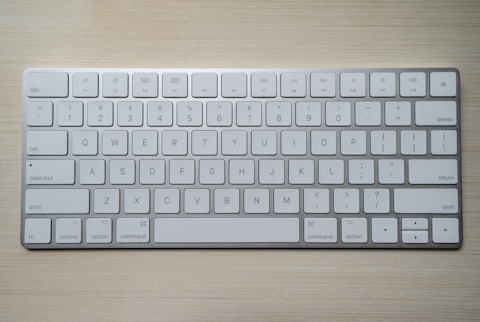
- Keyboard shortcut not used — the backlight must be manually turned on via Fn + Spacebar
- Lenovo Vantage settings conflict — automatic keyboard settings can override manual control
- Outdated firmware or BIOS — some backlight bugs were patched in later firmware versions
- Driver issue after Windows update — keyboard driver corruption can disable backlight control
Fix-by-Fix Solutions
Quick Toggle
Press Fn + Spacebar to cycle through backlight brightness levels: Off → Low → High → Off. Try this first before anything else.
Lenovo Vantage
Open Lenovo Vantage > Device Settings > Input. Check keyboard backlight settings and disable any automatic off timer that may be too aggressive.
Power Plan
In Control Panel > Power Options, switch from Battery Saver to Balanced or High Performance. Battery Saver disables the backlight to conserve power.
Driver Update
In Device Manager > Keyboards, update or reinstall the HID Keyboard Device driver. Also update the Lenovo Hotkey driver from Lenovo Support.

Update BIOS Firmware
Visit Lenovo Support, search for the ThinkBook 14s Yoga Gen 3, and download the latest BIOS update. Run the installer while plugged in. BIOS updates often include fixes for keyboard and backlight behavior.
“Lenovo Vantage had set the backlight auto-off to 15 seconds on my ThinkBook 14s Yoga. I never knew that setting existed. Changed it to 5 minutes and the problem was gone.”
— Nurul Aina, graphic designer
Frequently Asked Questions
Ryan holds a Computer Science degree and has spent over 15 years troubleshooting Windows hardware and driver issues across major laptop brands. He writes practical, step-by-step guides for everyday users at softwaredriverdownload.com.
Why does the ThinkBook 14s Yoga Gen 3 keyboard backlight turn off by itself?
Lenovo sets a default auto-off timer for the keyboard backlight to conserve battery. You can adjust or disable this timer in Lenovo Vantage under Device Settings > Input.
The Fn + Spacebar shortcut does not work. What should I try?
Make sure the Lenovo Hotkey Services driver is installed and running. Download it from Lenovo Support for your specific model. Also check that Fn Lock is not active by pressing Fn + Esc.
Will the backlight work in tablet mode on the ThinkBook 14s Yoga?
In most cases, the keyboard backlight is disabled automatically when the laptop is folded into tablet or tent mode since the keyboard is not accessible in those positions.
Does a BIOS update fix backlight issues?
Yes. Lenovo has released BIOS updates that address keyboard backlight control on several ThinkBook models. Checking for and installing the latest BIOS is a recommended step if other fixes fail.
Leave a Reply