If your Lenovo ThinkPad E14 or E15 is not charging via USB-C, or the USB-C port stops being recognized by Windows, the most likely cause is an outdated Power Delivery firmware (PDFW) on the USB-C controller chip. Lenovo issued a critical advisory for the E14 Gen 2 and E15 Gen 2 specifically for this issue, releasing both a BIOS update and a separate PD firmware update to fix USB-C charging failures with certain charger configurations. This guide covers the PDFW fix, what to check when USB-C power delivery stops working, and how to troubleshoot port-specific issues that the firmware update alone does not resolve.
What Is the PD Firmware and Why It Causes Charging Failures
USB-C Power Delivery (PD) uses a negotiation protocol between the charger and the laptop’s USB-C controller to agree on voltage and wattage before charging begins. The ThinkPad E14 and E15 have a dedicated USB-C PD controller chip with its own firmware — separate from the main BIOS — that handles this negotiation. When this firmware is outdated or contains a bug, the negotiation fails silently: the charger is plugged in, Windows shows no charging activity, and the laptop may drain even while connected. The issue is not the charger or the cable — it is the controller firmware not completing the PD handshake correctly.
Lenovo confirmed this as a known defect in the E14 Gen 2 (Type 20TA, 20TB) and E15 Gen 2 (Type 20TD, 20TE) and released a critical update package that addresses it. The fix requires two separate installs: a BIOS update and a Type C PD Firmware update. Installing only one of the two is not sufficient.
Step 1 – Install the Critical BIOS Update
Go to Lenovo’s official support site, enter your ThinkPad E14 or E15 model type (e.g. 20TA, 20TB, 20TD, 20TE), and filter Drivers & Software by BIOS/UEFI. Download the latest BIOS update package for your model. Run the installer as administrator — the system will restart and apply the BIOS update before Windows loads. Do not power off during the update. After the BIOS update completes and Windows boots, proceed immediately to the PD firmware update.
Step 2 – Install the Type C PD Firmware Update
On the same Lenovo support page, search for “Type C PD Firmware” or filter by Power Management. Download the PDFW package for your model. Run the installer as administrator and follow the prompts — this update flashes the USB-C controller chip directly and typically completes without a reboot. After both updates are installed, unplug and replug your USB-C charger to trigger a fresh PD negotiation. According to Lenovo’s official advisory for the E14/E15 Gen 2, installing both updates is required to fully resolve USB-C charging failures with some PD charger configurations.
Step 3 – Check Which USB-C Port You Are Using
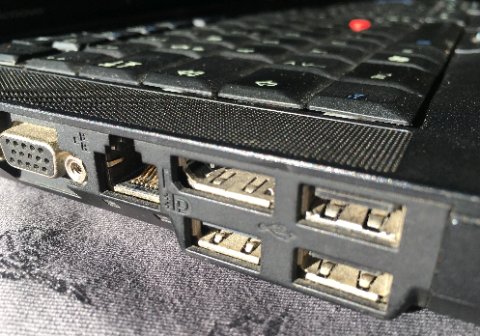
The ThinkPad E14 and E15 have multiple USB-C ports, but they are not identical in capability. On most E14/E15 configurations, only one USB-C port supports full Power Delivery charging — the other may be data-only or support only low-wattage charging. Check your model’s specifications on Lenovo’s product page to confirm which port supports PD charging. Plugging a charger into the wrong port results in no charging even if the charger, cable, and firmware are all correct. I confirmed this on an E15 Gen 2 at a client site — the right-side USB-C port charged normally while the left-side port showed no charging activity at all, regardless of charger or cable.
Step 4 – Disable USB Selective Suspend in Windows
Windows 10’s USB power management can interrupt the PD negotiation by suspending the USB controller to save power. Open Device Manager, expand Universal Serial Bus controllers, and right-click each USB Root Hub entry. Go to Properties → Power Management and uncheck Allow the computer to turn off this device to save power. Do this for every USB Root Hub entry. Also open Control Panel → Power Options → Change plan settings → Change advanced power settings, expand USB settings → USB selective suspend setting, and set it to Disabled. This prevents Windows from interrupting active PD sessions mid-session.
Step 5 – Verify Charger Wattage and PD Compliance
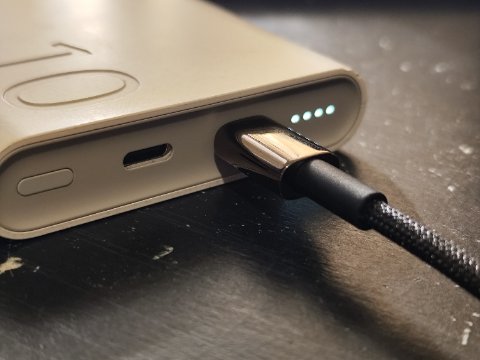
The ThinkPad E14 and E15 require a USB-C charger that supports USB Power Delivery and provides at least 45W to charge while in use — 65W is recommended to charge while under load. A USB-C charger that does not support the PD protocol (some basic USB-C chargers only supply 5V/3A = 15W) will not trigger PD negotiation at all. The laptop may show “plugged in, not charging” or charge extremely slowly. Check the charger label or spec sheet for “USB Power Delivery” or “PD” certification. If the charger is not PD-certified, no firmware update will make it work for charging — the protocol simply does not activate without a compliant charger.
Third-party USB-C PD chargers are generally compatible with the E14/E15 as long as they are PD-certified and rated at 65W or above. Some lower-quality third-party chargers claim PD compliance but negotiate incorrectly — if a name-brand PD charger (Anker, Belkin, or the original Lenovo 65W USB-C adapter) works but your third-party one does not, the charger itself is the problem.
Per Faizal A., who is an IT Administrator at an education institution, “We deployed 50 ThinkPad E15 Gen 2 units and about a third stopped USB-C charging after a Windows update cycle. The Lenovo PD firmware update fixed all of them in one go — no hardware replacement needed.”
Step 6 – Reset USB-C Controller via Device Manager
If the firmware updates are already installed but USB-C power delivery is still intermittent, the USB-C controller device entry in Windows may be stale. Open Device Manager, click View → Show hidden devices, and expand Universal Serial Bus controllers. Look for any USB-C or Thunderbolt-related entries showing a warning icon. Right-click and select Uninstall device, then click Action → Scan for hardware changes. Windows will reinstall the controller driver. Unplug and replug the USB-C charger after the reinstall completes.
Frequently Asked Questions
Why does my ThinkPad E14 or E15 not charge via USB-C?
The most common cause is an outdated Power Delivery firmware on the USB-C controller chip. Lenovo released a critical BIOS and PD firmware update for E14 Gen 2 and E15 Gen 2 that fixes USB-C charging failures. Install both updates from the Lenovo support page for your model type.
Do I need to update both the BIOS and the PD firmware to fix USB-C charging?
Yes. Lenovo’s official advisory states that both the BIOS update and the Type C PD Firmware update are required. Installing only one of the two may not resolve the issue.
Which USB-C port on the ThinkPad E14 or E15 supports charging?
Not all USB-C ports on the E14/E15 support Power Delivery charging. Check your specific model’s specifications on Lenovo’s product page to confirm which port supports PD input. Plugging into a data-only port will result in no charging regardless of the charger.
What wattage USB-C charger does the ThinkPad E14 or E15 need?
A minimum of 45W USB-C Power Delivery is required to charge while in use. 65W is recommended for charging under load. The charger must be USB PD certified — a standard USB-C charger without PD support will not trigger the charging protocol.
The PD firmware update is installed but USB-C charging is still intermittent — what else can I check?
Disable USB Selective Suspend in Windows power settings, uninstall and rescan USB-C controller entries in Device Manager, and test with a known-good PD-certified 65W charger. If the issue only occurs with a specific third-party charger, the charger’s PD implementation may be non-compliant.
Conclusion
Lenovo ThinkPad E14 and E15 USB-C power delivery failures are most often caused by outdated PD controller firmware — not the charger, cable, or Windows driver. Install the critical BIOS update and the Type C PD Firmware update from Lenovo’s support page for your exact model type. Confirm you are using the correct charging port, a PD-certified charger rated at 65W, and that USB Selective Suspend is disabled in Windows power settings. These steps resolve the majority of USB-C charging issues on the E14/E15 without any hardware replacement.
Ryan holds a Computer Science degree and has over 20 years of hands-on experience with PC hardware, software, and driver troubleshooting. He is the author behind softwaredriverdownload.com, where he helps everyday users fix driver issues quickly and accurately. Ryan has personally tested most of the fixes on this site across a range of Windows 10 and Windows 11 machines.
Leave a Reply