The Lenovo ThinkPad P1 is a professional workstation with Thunderbolt 4 ports for high-speed external storage and display connectivity. When Thunderbolt devices are not recognized on Windows 11, external workflows are disrupted. This guide covers every cause and fix for Thunderbolt not recognized on the ThinkPad P1.
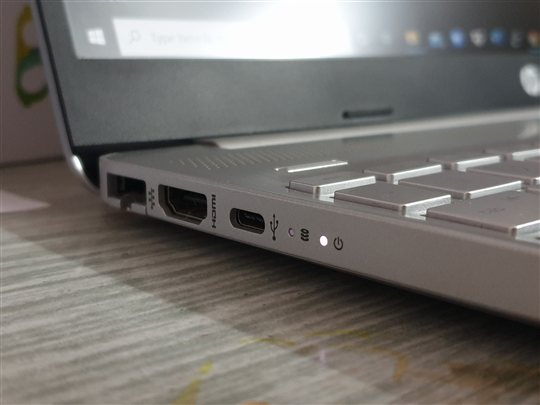
Why Lenovo ThinkPad P1 Thunderbolt Is Not Recognized
Intel Thunderbolt Controller Driver Missing or Outdated
The ThinkPad P1 uses Intel Thunderbolt 4 controllers that require specific Intel and Lenovo drivers. When Windows Update replaces the Lenovo-validated Thunderbolt driver with a generic version, Thunderbolt devices may not be detected even though Thunderbolt ports appear to be present.
Thunderbolt Security Settings Blocking Devices
Windows 11 and BIOS on the ThinkPad P1 include Thunderbolt security settings that can block unrecognized devices for security. When set to highest security, only pre-approved Thunderbolt devices will connect. Signs include:
- Thunderbolt device plugged in but not appearing in Device Manager
- Security warning appears in BIOS about unauthorized Thunderbolt device
- Device Manager shows unknown USB device instead of Thunderbolt device
- Previously working Thunderbolt devices suddenly stopped working
PCIe Controller or Chipset Driver Not Supporting Thunderbolt
The ThinkPad P1 Thunderbolt is handled by the chipset controller. An outdated or missing chipset driver can cause Thunderbolt ports to not enumerate devices properly.
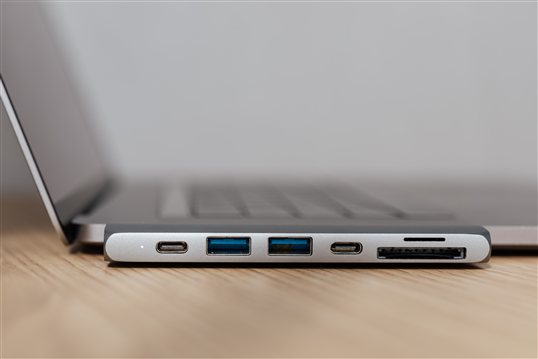
How to Fix Lenovo ThinkPad P1 Thunderbolt Not Recognized
Step 1: Update Intel Thunderbolt and Chipset Drivers
- Go to Lenovo support website and search for ThinkPad P1.
- Download and install the latest Intel Thunderbolt Controller Driver and Intel Chipset Driver for Windows 11.
- Restart after each driver installation.
- Plug in a Thunderbolt device and verify it appears in Device Manager.
Step 2: Adjust Thunderbolt Security Settings in BIOS
Restart the ThinkPad P1 and press F1 or Fn+F1 to enter BIOS Setup. Find Security, Thunderbolt Security or similar settings. Change from Maximum Security to either Medium Security or User Authorization Required. This allows previously authorized devices to connect. Save and exit BIOS, then test the Thunderbolt device.
Step 3: Approve Thunderbolt Device in Windows or BIOS
When you plug in a Thunderbolt device, Windows or BIOS may show a security prompt. Select to Allow or Authorize the device. After authorization, the device should be recognized in future connections.
My ThinkPad P1 Thunderbolt dock stopped being recognized. Updating the Intel Thunderbolt controller driver and changing BIOS security from Maximum to Medium fixed it. The device needed re-authorization. — Jennifer W., Lenovo ThinkPad P1 user
Frequently Asked Questions
What Thunderbolt version does ThinkPad P1 support?
The ThinkPad P1 supports Thunderbolt 4, which provides 40Gbps bandwidth for external storage, displays, and docking stations. All Thunderbolt 3 and Thunderbolt 4 devices are compatible with the P1 ports.
Can I use USB-C docks on ThinkPad P1 Thunderbolt ports?
Yes. Thunderbolt 4 is fully backward compatible with USB-C protocol. USB-C docks will work on ThinkPad P1 Thunderbolt ports, though they will operate at USB-C speeds (up to 10Gbps) rather than Thunderbolt 4 speeds (40Gbps).
How many Thunderbolt devices can I connect to ThinkPad P1?
You can daisy-chain up to 6 Thunderbolt devices per Thunderbolt port on the ThinkPad P1. Most users connect one Thunderbolt dock which then provides multiple USB-C and other ports for additional devices.
Why does my Thunderbolt device keep disconnecting on ThinkPad P1?
Frequent disconnections usually mean the Thunderbolt driver needs updating or the cable is loose. Update the Intel Thunderbolt driver, verify the Thunderbolt cable is fully inserted, and try a different Thunderbolt port if available.
Conclusion
Lenovo ThinkPad P1 Thunderbolt not recognized on Windows 11 is most often caused by a missing Intel Thunderbolt driver, Thunderbolt security set to Maximum, or an outdated chipset driver. Update Intel Thunderbolt and chipset drivers, adjust BIOS Thunderbolt security settings, and authorize the device. These steps resolve Thunderbolt detection failures on the ThinkPad P1 in most cases.
Ryan holds a Computer Science degree and has over 20 years of hands-on experience with PC hardware, software, and driver troubleshooting. He is the author behind softwaredriverdownload.com, where he helps everyday users fix driver issues quickly and accurately.
Leave a Reply