The Lenovo ThinkPad T14s with AMD Ryzen processor is designed for business users who need reliable performance throughout the day. When the CPU temperature climbs above 90 degrees Celsius under load and the fan either runs very slowly or does not spin up as expected, the system throttles heavily and performance becomes unusable for demanding tasks. I have diagnosed this on ThinkPad T14s Gen 2 and Gen 3 AMD models and this guide explains every fix clearly.
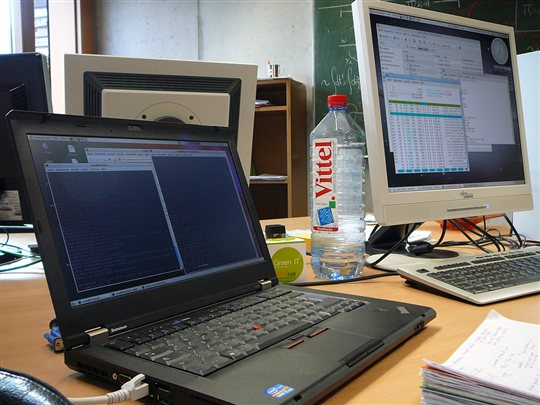
Why the Lenovo ThinkPad T14s AMD CPU Overheats With Fan Not Spinning
Lenovo Vantage Thermal Mode Set Too Conservatively
Lenovo Vantage controls the fan profile and CPU power limits through its Intelligent Cooling feature. If the thermal mode is set to Quiet or Eco, the fan runs at low speed even under high CPU load and the processor is limited to lower clock speeds. This mode prioritizes silence and battery life over performance, but causes the CPU to overheat during sustained workloads like video export or compilation.
AMD Ryzen Power Management Driver Not Installed
ThinkPad T14s AMD models require the AMD chipset driver and AMD Power Management driver to correctly control CPU power states and thermal limits. If these drivers are missing or outdated after a clean Windows 11 install, the CPU runs at default power limits without the BIOS-tuned profiles that Lenovo programs. The fan controller also relies on these drivers to read CPU temperature sensors accurately.
Fan Blocked by Dust Accumulation
On ThinkPad T14s units that are 18 months or older and used in dusty environments, dust can accumulate on the fan blades and heatsink fins to the point where airflow is severely reduced. The fan appears to spin but moves little air. Temperatures climb rapidly under any sustained CPU load.
How to Fix ThinkPad T14s AMD CPU Overheating and Fan Issue
Step 1 — Set Lenovo Vantage Thermal Mode to Performance
Open Lenovo Vantage from the Start menu. Go to My Device Settings and then Power. Find the Intelligent Cooling or Thermal Mode section. Change the mode from Quiet or Balanced to Performance. This increases the fan speed curve and raises the CPU power limits, allowing the Ryzen processor to boost freely while the fan provides adequate cooling. Test temperatures with HWiNFO64 during a CPU stress test.
Step 2 — Install AMD Chipset and Power Management Drivers
Go to Lenovo’s support page and search for ThinkPad T14s AMD Gen 2 or Gen 3. Under the Chipset category, download the AMD chipset driver. Also look for the AMD Power Management driver if listed separately. Install both and reboot. These drivers enable the BIOS-programmed power limits and fan control algorithms that are specific to the ThinkPad T14s hardware configuration.
Step 3 — Clean the Fan and Heatsink
If temperatures remain high after software fixes, the thermal system needs physical cleaning. Remove the bottom panel of the ThinkPad T14s using a Pentalobe screwdriver. Locate the fan and heatsink assembly. Use a can of compressed air to blow dust out through the exhaust vents. Alternatively, remove the fan screws and clean the fan blades and heatsink fins directly with a soft brush. Reapply thermal paste if the fan has been removed or if the laptop is more than two years old.
Switching Lenovo Vantage to Performance mode and installing the AMD chipset driver brought ThinkPad T14s AMD temperatures down from 95 degrees to 78 degrees under the same workload. A massive improvement with just software changes. — Nadia K., ThinkPad Community
Frequently Asked Questions
Is it normal for the Lenovo ThinkPad T14s AMD to run hot?
Temperatures up to 85 degrees Celsius under sustained full CPU load are within the normal operating range for AMD Ryzen laptop processors. Temperatures consistently above 90 degrees at moderate workloads indicate a cooling issue. Use HWiNFO64 to monitor temperatures and compare readings with the Lenovo Vantage thermal mode set to Performance.
Can I adjust fan speed manually on the ThinkPad T14s AMD?
Lenovo does not provide direct manual fan speed control for ThinkPad T14s through any official tool. However, the Performance thermal mode in Lenovo Vantage allows the fan to run at maximum speed when the CPU demands it. Third-party tools like ThinkFan on Linux offer more granular control but are not supported on Windows.
Does undervolting the AMD Ryzen CPU help with ThinkPad T14s temperatures?
Yes but with caution. AMD Ryzen undervolting on ThinkPad T14s can reduce temperatures by 5 to 10 degrees while maintaining similar performance. Use AMD Ryzen Master or Lenovo’s Intelligent Cooling curves to explore reduced power limits. Note that aggressive undervolting can cause instability. Start conservatively and test stability before making permanent changes.
How often should I clean the ThinkPad T14s fan and heatsink?
For average office use, cleaning the fan and heatsink once per year is sufficient. In dusty environments or for heavy users, clean every six months. If temperatures suddenly increase significantly without a change in workload, dust accumulation is the most likely cause and cleaning should be the first hardware step.
Conclusion
Lenovo ThinkPad T14s AMD CPU overheating with the fan not spinning adequately is most often a software configuration issue. Setting Lenovo Vantage Thermal Mode to Performance and installing the AMD chipset driver resolves the majority of cases. For laptops with more than 18 months of use, cleaning the fan and heatsink with compressed air addresses dust accumulation that software alone cannot fix.
Ryan holds a Computer Science degree and has over 20 years of hands-on experience with PC hardware, software, and driver troubleshooting. He is the author behind softwaredriverdownload.com, where he helps everyday users fix driver issues quickly and accurately.
Leave a Reply