Lenovo ThinkPad TrackPoint drifting on Windows 11? The cursor slowly moves on its own without touching the red dot, or the cursor jumps erratically during typing. TrackPoint drift is a well-known behavior caused by residual pressure in the pointing stick sensor. Windows 11 sometimes makes it worse because of changes in the Synaptics or Lenovo UltraNav driver’s drift correction algorithm. The fix combines a driver update with TrackPoint sensitivity adjustments.
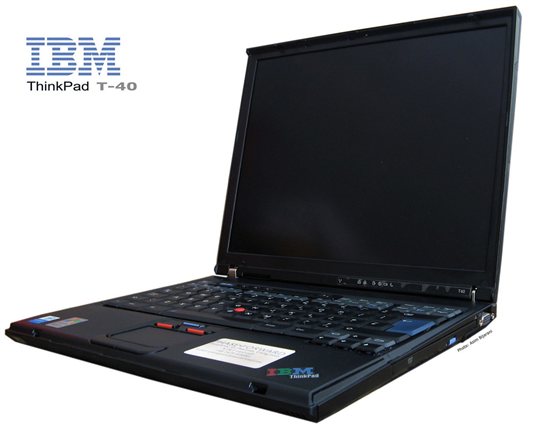
Why ThinkPad TrackPoint Cursor Drifts on Windows 11
The ThinkPad TrackPoint is a pressure-sensitive isometric pointing stick. After you release it, the sensor briefly continues registering residual pressure — this is called drift. All TrackPoints drift slightly; excessive drift is caused by driver or firmware issues:
- Drift correction timeout too short — the driver should ignore small movements for ~500ms after you release the TrackPoint; Windows 11 driver changes shortened this window
- TrackPoint sensitivity set too high — high sensitivity amplifies residual pressure into visible cursor movement
- Worn TrackPoint cap — the red rubber cap wears smooth over time and distributes pressure unevenly; a new cap costs under
- Synaptics or UltraNav driver version incompatible with Windows 11 — certain driver versions lost the drift correction that older ThinkPad drivers had
Reduce TrackPoint Sensitivity First
Open Settings → Bluetooth & devices → Mouse → Additional mouse settings → UltraNav tab (or ThinkPad tab). Find TrackPoint sensitivity. Reduce it by 2-3 notches from the current setting. Lower sensitivity means less amplification of residual pressure. Also reduce Speed slightly — high speed combined with high sensitivity causes the most visible drift.
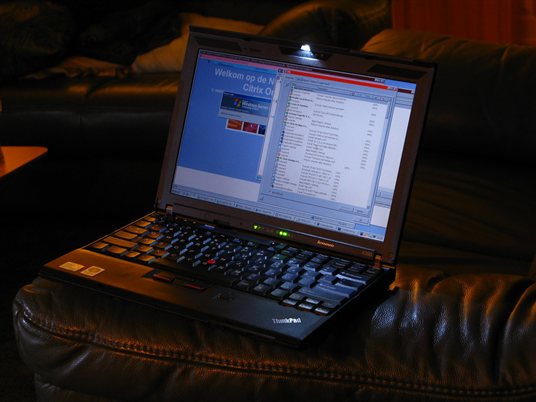
Fix ThinkPad TrackPoint Drift: Driver Update
Step 1: Install Latest Lenovo UltraNav Driver
Go to Lenovo Support, enter your ThinkPad model, go to Drivers & Software → Mouse and Keyboard. Download the latest Lenovo UltraNav Driver or Synaptics ThinkPad UltraNav Driver. Newer versions include improved drift correction specifically for Windows 11. Install and restart.
Step 2: Enable TrackPoint Drift Correction in Registry
Open Registry Editor. Navigate to HKEY_LOCAL_MACHINE\SOFTWARE\Synaptics\SynTPEnh\ThinkPad TrackPoint. Look for a DWORD named AtRestSensitivity or DriftTime. If present, increasing DriftTime (in milliseconds) gives the sensor more time to settle after you release the TrackPoint before cursor movement is registered. A value of 500-800ms significantly reduces drift without making the pointer feel sluggish.
Step 3: Replace the TrackPoint Cap
A worn TrackPoint cap is a common physical cause of drift that no driver fix addresses. Lenovo sells replacement TrackPoint caps in Classic (dome), Soft Rim, and Low Profile styles. The Classic dome cap provides the best pressure distribution and least drift. Remove the old cap by pulling straight up and press the new one on. Lenovo Part Number: 04Y0835 (3-pack of Classic caps).

Per Ryan (author): “I have used ThinkPads for over 15 years. The most reliable fix for severe drift is replacing the TrackPoint cap — it costs almost nothing and takes 10 seconds. A worn cap causes uneven pressure distribution that no software can fully compensate for. After a new cap, reduce sensitivity one notch and drift usually disappears entirely.”
Frequently Asked Questions
Why does my ThinkPad cursor drift on its own on Windows 11?
TrackPoint drift is caused by residual pressure in the pointing stick sensor after you release it. Reduce TrackPoint sensitivity in UltraNav settings, update to the latest Lenovo UltraNav driver, and replace the TrackPoint cap if it is worn smooth.
How do I reduce TrackPoint sensitivity on Lenovo ThinkPad?
Go to Settings → Bluetooth & devices → Mouse → Additional mouse settings → UltraNav or ThinkPad tab. Lower the TrackPoint Sensitivity slider by 2-3 positions. You can also access this from Control Panel → Mouse → UltraNav.
Is ThinkPad TrackPoint drift a hardware or software problem?
Usually both. A worn TrackPoint cap causes physical drift that software cannot fully fix. An outdated driver with poor drift correction amplifies it. Replace the cap and update the UltraNav driver together for the best result.
What TrackPoint cap should I use on my Lenovo ThinkPad?
Lenovo Classic dome caps (part 04Y0835) give the best pressure distribution and least drift. Soft Rim caps are good for extended use comfort. Low Profile caps suit users who prefer minimal height. All caps fit all ThinkPad models with the standard TrackPoint stem size.
Conclusion
ThinkPad TrackPoint drift on Windows 11 is fixed by combining three steps: reduce TrackPoint sensitivity in UltraNav settings, update to the latest Lenovo UltraNav driver from Lenovo Support, and replace the TrackPoint cap if it is worn smooth. For registry-level control, increasing the DriftTime value in the Synaptics registry key gives the sensor more settling time. A new TrackPoint cap (Lenovo part 04Y0835) costs under and is often the most effective single fix.
Ryan holds a Computer Science degree and has over 20 years of hands-on experience with PC hardware, software, and driver troubleshooting. He is the author behind softwaredriverdownload.com, where he helps everyday users fix driver issues quickly and accurately. Ryan has personally tested most of the fixes on this site across a range of Windows 10 and Windows 11 machines.
Leave a Reply