The Lenovo Yoga 9i is a premium convertible laptop with Thunderbolt 4 USB-C ports that support fast charging, data transfer, and display output. When USB-C charging slows down or stops working on Windows 11, the battery drains faster than the charger can replenish it. This guide covers every cause and fix for USB-C charging not working on the Lenovo Yoga 9i.
Why Lenovo Yoga 9i USB-C Charging Is Not Working
Thunderbolt Driver Missing or Outdated
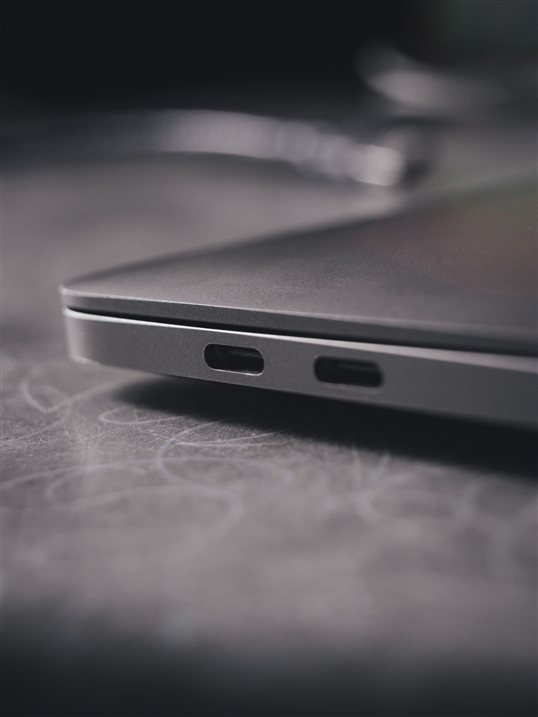
The Yoga 9i uses Intel Thunderbolt 4 controllers managed by Thunderbolt firmware and driver on Windows 11. When the Thunderbolt driver is missing or outdated, USB Power Delivery negotiation fails and the charger may not be recognised as a valid power source even though it is connected. The laptop may show a slow charge rate or charging may stop completely after the battery reaches a threshold.
USB-C Port Power Delivery Wattage Mismatch
The Lenovo Yoga 9i requires a USB-C charger with at least 65W USB Power Delivery rating for full-speed charging while in use. A 45W or lower charger will charge only when the laptop is idle or off. Signs that wattage is the issue include:
- Charging works when the laptop is powered off but not when powered on
- Battery percentage decreases even with the charger connected
- Notification says plugged in but not charging or charging slowly
- Original Lenovo 140W or 65W charger works but third-party charger does not
Windows Power Management Limiting Charging Speed
Windows 11 Power Plans can be configured to limit battery charging speed to extend lifespan. When Battery Saver mode is active above a certain threshold or custom power plans are configured to limit charge rate, the Yoga 9i charger appears connected but charges very slowly or not at all even though all drivers are functional. Adjusting power plan settings restores normal charging speed.
How to Fix Lenovo Yoga 9i USB-C Charging Not Working
Step 1: Update Intel Thunderbolt and Chipset Drivers
- Go to Lenovo support and search for Yoga 9i.
- Download and install the Intel Thunderbolt Driver for Windows 11.
- Also download the Intel Chipset Driver and install it.
- Restart the laptop and connect your USB-C charger.
- Test charging by checking the battery percentage for 10 minutes. The percentage should increase when plugged in.
Step 2: Verify USB-C Charger Power Delivery Wattage
Check your USB-C charger specification plate. The charger must support USB Power Delivery and be rated at 65W or higher for the Yoga 9i. If your charger is less than 65W, it will not fully charge the laptop when it is under load or in use. Test with the original Lenovo 65W or 140W charger if available to confirm wattage is the issue. Third-party chargers are acceptable if they are certified USB Power Delivery at 65W or above.
Step 3: Disable Power Limiting Features in Power Settings
Go to Settings, System, Power and battery. If using Battery Saver or a custom power plan, switch to Balanced or High Performance mode. Click the battery icon in the system tray and verify Battery Saver is turned off. In Power Options (Control Panel), check that no custom power plan has a charging limiter configured. After disabling power limits, reconnect your charger and verify the battery charges at full speed.
My Yoga 9i USB-C charging was very slow with a third-party 45W charger. Updating the Intel Thunderbolt driver and using a 65W USB Power Delivery charger fixed it completely. The 45W charger was simply underpowered for the Yoga 9i. — Sophia R., Lenovo Yoga 9i user
Frequently Asked Questions
How many Thunderbolt 4 USB-C ports does the Lenovo Yoga 9i have?
The Lenovo Yoga 9i features two Thunderbolt 4 USB-C ports on the left side of the chassis. Both ports support USB Power Delivery charging at up to 140W, fast data transfer at 40Gbps, and external display output via DisplayPort Alt Mode. Either port can be used for charging the Yoga 9i.
What is the maximum charging wattage for Lenovo Yoga 9i?
The Lenovo Yoga 9i supports up to 140W USB Power Delivery charging with the included Lenovo charger. The laptop will accept any charger with USB Power Delivery at 65W or higher, though slower chargers will result in slower battery charging. The 140W charger charges the Yoga 9i from 0 to 100 percent in approximately 90 minutes under normal conditions.
Can I use a phone charger to charge the Lenovo Yoga 9i?
Most phone chargers are rated at 5W to 25W, which is far below the 65W minimum for Yoga 9i charging. The laptop will not charge from a standard phone charger. Some USB Power Delivery phone chargers at 45W or higher may provide trickle charging when the laptop is powered off, but this is not recommended as the charge rate will be extremely slow.
Why does the Lenovo Yoga 9i charge only when powered off?
When charging works only when powered off, the charger wattage is likely insufficient for the laptop under load. Verify your charger supports USB Power Delivery at 65W or higher. Update Intel Thunderbolt and chipset drivers. If using Battery Saver mode, switch to Balanced or High Performance. A 45W charger is the most common cause of this issue.
Conclusion
Lenovo Yoga 9i USB-C charging not working on Windows 11 is most often caused by missing Intel Thunderbolt driver, a charger below the 65W USB Power Delivery minimum, or Windows power management limiting charge speed. Update Intel Thunderbolt and chipset drivers, verify your charger is 65W USB Power Delivery or higher, and disable power limiting features in Windows settings. These steps resolve USB-C charging failures on the Yoga 9i in most cases.
Ryan holds a Computer Science degree and has over 20 years of hands-on experience with PC hardware, software, and driver troubleshooting. He is the author behind softwaredriverdownload.com, where he helps everyday users fix driver issues quickly and accurately.
Leave a Reply