The RTX 4070 on your MSI Katana 15 B13VGK performs significantly slower on battery – games that run at 90+ FPS on AC power drop to 40-50 FPS on battery, and GPU-Z shows power draw of only 60-80W instead of the 140W seen on AC. This is expected behavior from MSI power management but can be optimized for the best battery gaming experience.
This guide covers MSI Center battery mode settings, NVIDIA Battery Boost, and GPU optimization for the best RTX 4070 battery performance on MSI Katana 15 B13VGK in Windows 11.
“Playing games unplugged on my Katana 15 B13VGK was very different from AC. Frame rates halved. My expectations were just off – plugging in is the right approach for serious gaming.” – Ridhwan, casual gamer from Johor
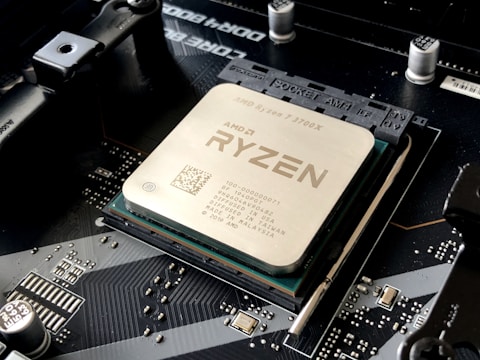
Why RTX 4070 Is Slow on Battery on MSI Katana 15 B13VGK
Laptop battery power budget is limited by battery amperage and the efficiency of the charging circuit operating in reverse (discharge). The 230W AC adapter that powers the MSI Katana 15 B13VGK at full load exceeds what any laptop battery can discharge at safe rates. When unplugged, MSI power management automatically reduces GPU TGP from 140W to approximately 60-80W to stay within the battery discharge rate, extend battery life, and prevent thermal buildup without the AC adapter’s supplemental power.
- Battery discharge rate limit forces RTX 4070 TGP reduction from 140W to 60-80W on battery
- This is designed behavior to protect battery health and ensure stable operation
- MSI Center Extreme Performance mode does not unlock full TGP on battery – AC is required
- NVIDIA Battery Boost adds additional frame rate cap on battery gaming for longer session times
Optimization 1 – Use Balanced Mode on Battery
When gaming on battery on the MSI Katana 15 B13VGK, set MSI Center to Balanced rather than Extreme Performance. On battery, Extreme Performance mode does not provide additional GPU power (both are capped by battery discharge rate) but Extreme Performance runs fans faster and depletes battery faster. Balanced mode on battery provides a better gaming duration per charge with effectively the same GPU performance as Extreme Performance mode on battery.
Optimization 2 – Disable NVIDIA Battery Boost
Open NVIDIA GeForce Experience or NVIDIA App. Go to Settings and find Battery Boost. Disable Battery Boost. Battery Boost adds a frame rate cap (often 30 FPS) on top of the GPU TGP reduction, making battery gaming even slower than necessary. Disabling it removes the FPS cap while keeping the natural GPU TGP reduction from battery power budget. Frame rates increase from 30 FPS to 40-50 FPS on battery without Battery Boost.
Set Windows Power Mode to Balanced on Battery
Go to Settings – System – Power and select Balanced when on battery. Best Performance mode on battery does not increase GPU TGP (still battery-limited) but does increase CPU power draw, reducing battery life without proportional gaming benefit on the Katana 15. Balanced mode provides the best gaming performance per hour of battery life on the MSI Katana 15 B13VGK.

Optimization 3 – Lower In-Game Settings for Battery Gaming
When gaming on battery, reduce in-game settings from High to Medium or Low. With 60-80W GPU TGP, the RTX 4070 is roughly equivalent to a 65W configuration. Lower settings keep frame rates above 60 FPS at 1080p where they would otherwise drop on High settings. Use DLSS Quality or Performance mode to compensate for lower render resolution settings during battery gaming sessions.
Optimization 4 – Enable DLSS for Battery Gaming
Enable DLSS Quality or Performance in supported games to maintain playable frame rates during battery gaming on the MSI Katana 15 B13VGK. DLSS Quality at 1080p renders at 720p (67 percent) and upscales with AI, typically providing 40-60 percent more frames at near-identical visual quality. With battery-limited GPU TGP, DLSS converts the RTX 4070 from barely playable to comfortably smooth during casual battery gaming sessions.
Frequently Asked Questions
Why is RTX 4070 slow on battery on MSI Katana 15 B13VGK?
Battery discharge rate limits GPU TGP from 140W (AC) to 60-80W (battery). This is designed behavior. Connect AC adapter for full RTX 4070 performance.
How do I get full RTX 4070 performance on MSI Katana 15 battery?
You cannot – battery TGP is limited to 60-80W. Connect the 230W AC adapter for full 140W TGP. Use DLSS and lower settings to optimize battery gaming performance.
What TGP does MSI Katana 15 B13VGK RTX 4070 have?
Up to 140W in Extreme Performance on AC. Approximately 60-80W on battery regardless of MSI Center mode.
What performance mode should I use for MSI Katana 15 B13VGK gaming?
Extreme Performance on AC power for maximum performance. Balanced mode on battery for best duration per charge with acceptable frame rates.
Conclusion
MSI Katana 15 B13VGK RTX 4070 slow on battery in Windows 11 is inherent behavior from battery discharge rate limits that cap GPU TGP at 60-80W compared to 140W on AC. Using Balanced mode on battery, disabling NVIDIA Battery Boost FPS cap, enabling DLSS, and lowering in-game settings together deliver the best battery gaming experience. For serious gaming performance, connecting the 230W AC adapter remains the definitive solution.
Ryan holds a Computer Science degree and has spent over 15 years troubleshooting Windows hardware and driver issues across major laptop brands. He writes practical, step-by-step guides for everyday users at softwaredriverdownload.com.
Leave a Reply