MSI Katana GF76 Nvidia RTX 3060 Not Detected Windows 11
Your MSI Katana GF76 shows only integrated Intel graphics in Device Manager – the NVIDIA RTX 3060 has disappeared, shows Code 43, or is listed as an unknown device. Games run on integrated graphics only and performance is severely reduced.
This is a driver corruption issue that is fixable without hardware repair. This guide walks you through using DDU (Display Driver Uninstaller) in Safe Mode for a clean reinstall, plus BIOS and MSI Center checks.
“Opened my Katana GF76 after a Windows 11 update and the RTX 3060 was gone from Device Manager. Games dropped from 60fps to 15fps on integrated graphics. Clean driver reinstall brought it back.” – Izzat, gamer from Johor Bahru
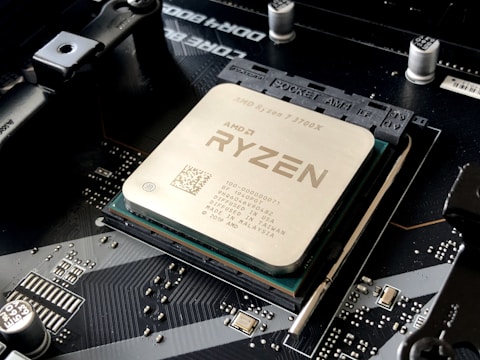
Why RTX 3060 Disappears on MSI Katana GF76
The MSI Katana GF76 uses NVIDIA Optimus technology to switch between the Intel Iris Xe integrated GPU and the NVIDIA RTX 3060 discrete GPU. When Windows 11 updates corrupt the NVIDIA driver stack, the discrete GPU may stop being recognized, showing Code 43 or simply disappearing from Device Manager.
- NVIDIA driver corrupted by Windows 11 update – shows Code 43
- RTX 3060 not listed under Display Adapters in Device Manager
- NVIDIA Control Panel missing from right-click context menu
- Games default to Intel Iris Xe and run at very low frame rates
Fix 1 – Clean Reinstall with DDU in Safe Mode
Download Display Driver Uninstaller (DDU) from Guru3D. Boot to Safe Mode (Settings – System – Recovery – Advanced startup – Troubleshoot – Advanced options – Startup Settings – Restart – F4). Run DDU, select GPU – NVIDIA, and click Clean and restart. After normal restart, download and install the latest GeForce Game Ready driver from nvidia.com/drivers.
Fix 2 – Check BIOS Discrete GPU Setting
Restart and press Del or F2 to enter BIOS. Look under Advanced – GPU Settings or Integrated Graphics for a setting called Discrete GPU or PEG Display. Ensure it is not Disabled. Save and exit. Some MSI BIOS versions have an iGPU Multi-Monitor setting that conflicts with discrete GPU detection.
Registry Check for GPU
Open Registry Editor and check HKEY_LOCAL_MACHINE\SYSTEM\CurrentControlSet\Control\GraphicsDrivers\Configuration – if there are conflicting entries from old driver versions, DDU will have cleaned these. Verify the entry count is normal after a clean reinstall.

Fix 3 – Set Discrete GPU Mode in MSI Center
Open MSI Center (pre-installed), go to User Scenario, and under GPU Mode select Discrete GPU or dGPU Mode. Some firmware versions have a bug where switching to this mode and rebooting re-enables the GPU properly even after driver reinstallation alone does not fix it.
Fix 4 – Update Windows 11 and MSI Dragon Center Drivers
Run Windows Update to ensure all system drivers are current. Also update MSI Center itself from the Microsoft Store – outdated MSI Center versions sometimes interfere with NVIDIA Optimus switching and prevent the dGPU from being detected.
Frequently Asked Questions
Why is RTX 3060 not detected on MSI Katana GF76?
The NVIDIA driver is likely corrupt after a Windows 11 update. Run DDU in Safe Mode to clean all NVIDIA drivers, then reinstall the latest GeForce driver.
How do I fix RTX 3060 not showing in Device Manager?
Boot to Safe Mode, run DDU to remove all NVIDIA drivers, restart normally, and install the latest driver from nvidia.com.
What is Error Code 43 on NVIDIA GPU in Windows 11?
Code 43 means Windows stopped the device due to reported problems. For NVIDIA GPUs this is almost always a driver issue. DDU clean reinstall resolves it.
Does MSI Katana GF76 have a MUX switch?
No hardware MUX switch. It uses NVIDIA Optimus. Use MSI Center to set GPU mode to Discrete GPU only for best gaming performance.
Conclusion
NVIDIA RTX 3060 not detected on MSI Katana GF76 in Windows 11 is a driver corruption issue. Using DDU in Safe Mode for a complete clean reinstall is the most reliable fix. Check BIOS GPU settings and MSI Center GPU mode as secondary steps if DDU alone does not resolve the problem.
Ryan holds a Computer Science degree and has spent over 15 years troubleshooting Windows hardware and driver issues across major laptop brands. He writes practical, step-by-step guides for everyday users at softwaredriverdownload.com.
Leave a Reply