MSI Modern 15 Ethernet Adapter Missing After Windows Update
After a Windows 11 update your MSI Modern 15 shows no Ethernet adapter in Device Manager and wired network connections do not work at all. The Network Adapters section may be empty or show only WiFi. This is a driver removal issue where Windows Update replaced the Realtek Ethernet driver with an incompatible version.
This guide shows how to restore the Realtek Ethernet driver on the MSI Modern 15 and avoid the issue recurring in future Windows 11 updates.
“Ethernet disappeared from Device Manager after a Windows update on my MSI Modern 15. Had to use mobile data to download the Realtek driver from MSI Support. Fixed in 5 minutes.” – Rauf, IT technician from Kota Bharu
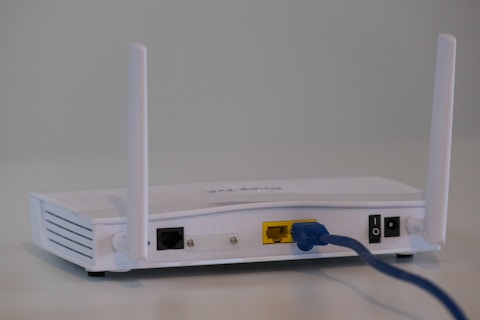
Why Ethernet Adapter Disappears on MSI Modern 15
The MSI Modern 15 uses a Realtek RTL8111 or RTL8168 PCIe Gigabit Ethernet chip. Windows 11 cumulative updates occasionally install a generic Microsoft Ethernet driver that is incompatible with this chip variant, causing the adapter to disappear from Device Manager. Windows Update may also fail mid-installation and leave the driver in a broken state.
- Realtek Ethernet driver removed or replaced during Windows 11 cumulative update
- No Ethernet adapter listed under Network Adapters in Device Manager
- Error: A network adapter was not found in Safe Mode network
- Device Manager shows Other devices with unknown device after update
Fix 1 – Reinstall Realtek Ethernet Driver from MSI Support
Use a USB drive or mobile hotspot to access the internet on another device or via phone. Go to msi.com/support, find your MSI Modern 15 model, and download the Realtek LAN Driver for Windows 11 under Drivers. Copy to a USB drive if needed. On the MSI Modern 15, open Device Manager, scan for hardware changes, then run the driver installer. Restart after installation.
Fix 2 – Scan for Hardware Changes
Open Device Manager (Win + X), click Action – Scan for hardware changes. Windows will re-enumerate all hardware and may detect the Realtek Ethernet controller and prompt to install a driver. If a driver is found and installed, test the Ethernet connection immediately.
Manually Locate the Device
In Device Manager, go to View – Show hidden devices. Check Other devices or Unknown devices for a PCI device or Network Controller with no driver. Right-click and Update driver – Browse my computer for drivers. Point to the extracted Realtek driver folder downloaded from MSI Support.

Fix 3 – Prevent Windows Update from Removing Driver
After reinstalling the Realtek driver, prevent Windows Update from replacing it. Open Group Policy Editor (gpedit.msc), go to Computer Configuration – Administrative Templates – Windows Components – Windows Update – Manage updates offered from Windows Update. Enable Exclude WU drivers in Quality Update policy. Alternatively, use the Show or Hide Updates tool from Microsoft to block the incompatible Realtek driver update.
Fix 4 – Roll Back Driver if Present
If Device Manager shows the Realtek Ethernet adapter with a yellow warning, right-click Properties – Driver tab – Roll Back Driver. This restores the previous working driver version if Windows Update replaced it. If Roll Back Driver is greyed out, the original driver is no longer in the driver store and reinstallation is needed.
Frequently Asked Questions
Why is Ethernet adapter missing on MSI Modern 15 after Windows update?
A Windows 11 update removed or replaced the Realtek Ethernet driver. Reinstall from MSI Support to restore the adapter.
How do I reinstall Ethernet driver on MSI Modern 15?
Download the Realtek LAN driver from MSI Support, open Device Manager, scan for hardware changes, and run the installer.
What Ethernet chip does MSI Modern 15 use?
Realtek RTL8111 or RTL8168 PCIe Gigabit Ethernet. Driver available under Network from MSI Support.
How do I access the internet to download drivers if Ethernet is missing?
Use a phone as a WiFi hotspot or download the driver on another device and copy to a USB drive.
Conclusion
Ethernet adapter missing on MSI Modern 15 after Windows 11 update is a Realtek driver removal issue. Reinstalling from MSI Support restores full wired network connectivity. Use the Group Policy trick to prevent future Windows updates from replacing the working driver with an incompatible version.
Ryan holds a Computer Science degree and has spent over 15 years troubleshooting Windows hardware and driver issues across major laptop brands. He writes practical, step-by-step guides for everyday users at softwaredriverdownload.com.
Leave a Reply