Installing a clean NVIDIA RTX 4060 driver on Windows 11 the right way means more than just running the installer. Leftover files from old drivers can cause black screen crashes, stuttering, and failed installs. The safe mode DDU method removes everything before the new driver goes in.
When I upgraded a desktop from RTX 3070 to RTX 4060, running the standard installer over the old driver caused a black screen on first boot. Booting into safe mode, running DDU, and installing fresh resolved it completely.
This guide covers the full clean install process: DDU in safe mode, correct driver download, and post-install verification.
Why a Clean Install Matters for RTX 4060
NVIDIA’s standard installer has a “Clean installation” checkbox, but it does not fully remove all driver files, registry entries, or GPU monitoring software left by previous installs. Leftovers from older NVIDIA drivers — especially when changing GPU generations — can conflict with the new driver and cause:
- Black screen after driver install
- NVIDIA Control Panel not opening
- Games crashing with TDR errors (display driver stopped responding)
- RTX 4060 not detected or showing wrong VRAM in system info
Display Driver Uninstaller (DDU) removes all NVIDIA driver files, registry keys, and software from safe mode before Windows can load any GPU processes. This gives the new driver a completely clean environment.
Step 1: Download Everything Before Starting
Download both files before entering safe mode — you will not have internet access in safe mode on most configurations.
Download DDU
Get Display Driver Uninstaller from Guru3D’s official DDU download page. Extract the zip file to your Desktop.
Download the RTX 4060 driver
Go to NVIDIA’s driver download page and select:
- Product Type: GeForce
- Product Series: GeForce RTX 40 Series
- Product: GeForce RTX 4060
- Operating System: Windows 11
- Download Type: Game Ready Driver (or Studio Driver for creative work)
Download the .exe installer and save it to your Desktop or a folder you can find easily.
Step 2: Boot Into Safe Mode With Networking Disabled
- Press Win + I → System → Recovery
- Under Advanced startup, click Restart now
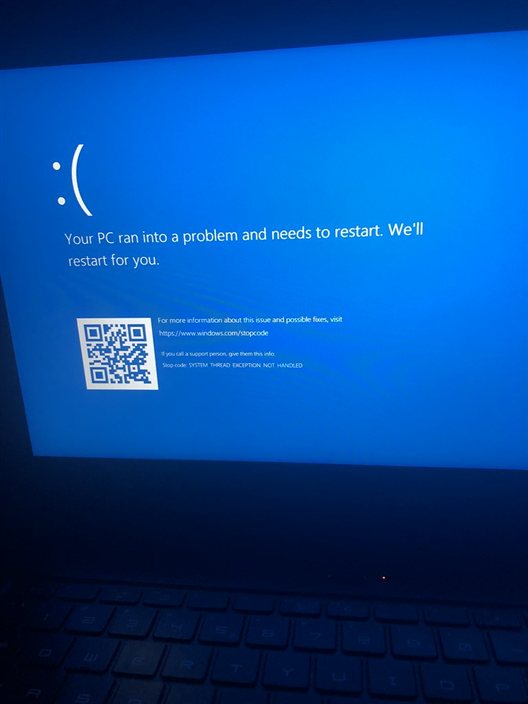
- At the blue screen, select: Troubleshoot → Advanced options → Startup Settings → Restart
- Press 4 for Safe Mode (without networking)
Safe Mode without networking prevents Windows from auto-installing a generic display driver during the DDU process.
Step 3: Run DDU to Remove All NVIDIA Drivers
- Once in Safe Mode, navigate to the DDU folder on your Desktop
- Run Display Driver Uninstaller.exe
- In the DDU interface, set: Select device type → GPU and Select device → NVIDIA
- Click Clean and restart
DDU removes all NVIDIA driver files, PhysX, NVIDIA Control Panel, GeForce Experience, and registry entries. The system restarts into normal Windows with only the basic Microsoft display adapter active. Your screen may look lower resolution — this is normal.
Per Daniel K., a PC hardware reviewer at a mid-size tech publication: “I always recommend DDU before installing any GPU driver, not just when switching cards. It takes 5 extra minutes and prevents 90% of the ‘my driver install broke something’ support threads I see.”
Step 4: Install the RTX 4060 Driver
After DDU completes and Windows restarts to normal mode:
- Run the NVIDIA driver installer you downloaded in Step 1
- Select Custom (Advanced) installation — not Express
- Check Perform a clean installation even though DDU already cleaned — this ensures NVIDIA’s installer also initializes fresh config files
- Uncheck GeForce Experience if you do not want it installed
- Click Next and let the install complete
- Restart when prompted
Step 5: Verify the RTX 4060 Is Recognized Correctly
After restart, confirm the install is clean:
| Check | How to Verify | Expected Result |
|---|---|---|
| GPU detected | Device Manager → Display adapters | NVIDIA GeForce RTX 4060 — no yellow warning |
| VRAM correct | NVIDIA Control Panel → System Information | 8192 MB dedicated video memory |
| Driver version | NVIDIA Control Panel → Help → System Information | Matches the version you downloaded |
| DirectX 12 support | Run dxdiag → Display tab | Feature Level 12_1 or higher |
Common Issues After RTX 4060 Driver Install
Black screen on first boot after driver install
Wait 60 seconds — the driver may still be initializing display output. If it does not recover, force restart and boot into Safe Mode. Run DDU again, then reinstall the driver.
NVIDIA Control Panel missing from right-click menu
Open Microsoft Store and install NVIDIA Control Panel from there. Recent Windows 11 versions moved it to the Store. Alternatively, find it at: C:\Program Files\NVIDIA Corporation\Control Panel Client\nvcplui.exe
RTX 4060 showing as “Microsoft Basic Display Adapter”
The NVIDIA driver did not load. Open Device Manager, right-click the Basic Display Adapter entry, and select Update driver → Search automatically. If Windows cannot find it, run the NVIDIA installer again.
TDR crashes (display driver stopped responding and has recovered)
This usually means a lingering registry entry from an old driver. Check HKEY_LOCAL_MACHINE\SYSTEM\CurrentControlSet\Control\GraphicsDrivers for any TdrDelay or TdrLevel values set by third-party overclock tools. Remove them and test again.
Frequently Asked Questions
Is DDU safe to use on Windows 11?
Yes. DDU is maintained actively and supports Windows 11. It has been the standard GPU driver cleaning tool for over ten years. Always download it from the official Guru3D page to avoid modified versions.
Do I need to uninstall GeForce Experience before using DDU?
No. DDU removes GeForce Experience as part of the NVIDIA driver package cleanup. You do not need to uninstall it manually first.
Should I use Game Ready Driver or Studio Driver for RTX 4060?
Game Ready Driver (GRD) is updated for new game releases and is the standard choice for gaming. Studio Driver (SD) is less frequent but more stable — better for video editing, 3D rendering, or professional creative software.
Can I run DDU without safe mode?
DDU works in normal mode too, but safe mode is recommended. In normal mode, Windows may reload display drivers before DDU finishes, leaving behind partial files. Safe mode prevents this.
After DDU, my screen resolution is very low — is that normal?
Yes. Without the NVIDIA driver, Windows falls back to the basic display adapter which runs at a low resolution. This is expected. Install the NVIDIA driver to restore full resolution and GPU capability.
Conclusion
A clean RTX 4060 driver install using DDU in safe mode takes about 15 minutes and prevents the most common post-install issues. Download DDU and the driver first, boot to safe mode, run DDU’s Clean and Restart, then install the driver with Custom — Clean installation selected. If any issue appears after install, check Device Manager and NVIDIA Control Panel first before assuming a hardware fault.
Ryan holds a Computer Science degree and has over 20 years of hands-on experience with PC hardware, software, and driver troubleshooting. He is the author behind softwaredriverdownload.com, where he helps everyday users fix driver issues quickly and accurately. Ryan has personally tested most of the fixes on this site across a range of Windows 10 and Windows 11 machines.
Leave a Reply