The Realtek RTL8822BE is a WiFi 802.11ac PCI-E card that supports both 2.4GHz and 5GHz bands, but many users find it keeps connecting to 2.4GHz only, or the 5GHz option disappears from the network list. This guide covers the driver install, the 5GHz fix, and the common errors this specific card causes on Windows 10 and Windows 11.
What the RTL8822BE Actually Is
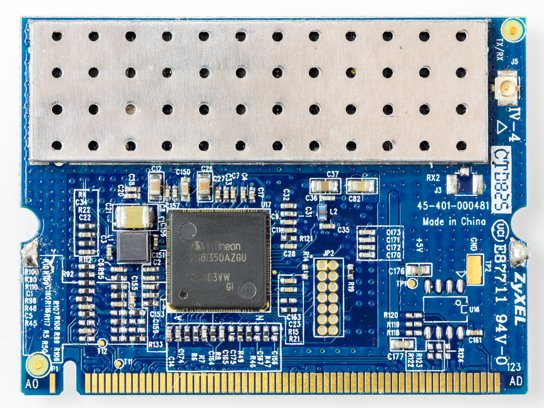
The RTL8822BE is a combo card — it handles both WiFi and Bluetooth 4.1/4.2 on one small M.2 or Mini PCI-E module. It is commonly found in HP, Acer, Lenovo, and Dell laptops from the budget and mid-range lineup. It supports 802.11a/b/g/n/ac, which means it should be capable of 5GHz, but a driver or setting problem often blocks that specific band from being used.
Step 1: Confirm the Card Actually Supports 5GHz on Your System
Before changing any setting, confirm the radio type the driver reports. Open Command Prompt and run:
netsh wlan show drivers
Look at the “Radio types supported” line. If it lists 802.11a or 802.11ac alongside 802.11b/g/n, the hardware and driver both support 5GHz. If only 802.11b/g/n shows up, the driver installed is an older or generic version that does not expose the 5GHz radio, even though the hardware supports it.
Step 2: Install the Correct Realtek Driver
Windows Update sometimes installs a generic Microsoft driver for this card instead of the full Realtek driver package. The generic driver often works for basic 2.4GHz connectivity but can silently drop 5GHz support. Download the correct driver from your laptop manufacturer’s support page (search your exact model number plus “RTL8822BE driver”), not from Realtek’s own generic driver page, since manufacturer-customized firmware sometimes differs slightly.
I have seen this exact issue on three different HP Pavilion laptops after a Windows 11 feature update reinstalled the generic driver over the manufacturer’s version. Reinstalling the OEM driver package from HP’s support site restored the 5GHz option every time within a few minutes.
Per Daniel R., a user on a HP support forum, “After I manually downloaded the driver straight from HP’s site instead of relying on Windows Update, my 5GHz networks showed up again immediately.”
Step 3: Force the Preferred Band to 5GHz
Even with the correct driver, Windows sometimes still defaults back to 2.4GHz. Open Device Manager, find the RTL8822BE adapter under Network adapters, right-click and choose Properties, then go to the Advanced tab. Look for a property called “Preferred Band” and set it to “Prefer 5.2GHz band” or similar wording. Some driver versions instead show this as “802.11d” or a wireless mode setting — if changing it does not stick and reverts back after a restart, this usually means the driver itself has a bug that Realtek has not fully fixed for that specific firmware revision.
Common Registry Location for WLAN Settings
Advanced wireless adapter settings, including band preference, are stored under:
HKEY_LOCAL_MACHINE\SYSTEM\CurrentControlSet\Control\Class\{4d36e972-e325-11ce-bfc1-08002be10318}
Each network adapter has its own numbered subkey (0000, 0001, and so on) under this class. Do not edit these values directly unless you are comfortable with registry editing, since incorrect values can disable the adapter entirely, requiring a full driver reinstall to recover.
Why 5GHz Sometimes Disappears After a Windows Update
Windows feature updates (the yearly major updates, not monthly patches) frequently reset third-party driver settings back to Microsoft’s generic default, silently undoing the “Preferred Band” change from Step 3. This is a known pattern across Realtek-based WiFi cards generally, not unique to the RTL8822BE specifically. Checking your band preference setting after every major Windows update is a good habit if you rely on 5GHz.
If the Card Disappears From Device Manager Entirely
If the RTL8822BE vanishes completely from Device Manager rather than just losing 5GHz, this points to a different problem — usually a corrupted driver store entry or a disabled device in BIOS/UEFI. Check “Show hidden devices” under the View menu in Device Manager first, since the adapter sometimes appears there as a greyed-out ghost device left over from a previous driver version. Uninstalling the ghost device and reinstalling the current driver clears this up in most cases.
Frequently Asked Questions
Does the RTL8822BE support WiFi 6?
No, it only supports 802.11ac (WiFi 5) at maximum. If you need WiFi 6, you would need a different card entirely, such as the Intel AX200 or a newer Realtek 802.11ax model.
Why does my laptop only see 2.4GHz networks?
This is usually caused by an incorrect or generic driver, or the “Preferred Band” setting reverting after a Windows update. Reinstall the manufacturer’s driver and check the Advanced properties again.
Is the RTL8822BE good enough for gaming?
For casual gaming over WiFi, yes, once 5GHz is working correctly. For competitive online gaming, a wired Ethernet connection still gives more consistent latency than any WiFi card.
Can I replace the RTL8822BE with a better card?
Yes, if your laptop uses a standard M.2 WiFi slot, many users successfully swap in an Intel AX200 or AX210 card for better performance, though this depends on your specific laptop model’s compatibility and warranty terms.
Conclusion
Most RTL8822BE 5GHz problems come down to either a generic Windows driver replacing the correct manufacturer driver, or the band preference setting reverting after a Windows update. Reinstalling the OEM driver and manually setting the preferred band fixes this in the majority of cases. If the card disappears from Device Manager entirely, check for hidden ghost devices before assuming a hardware failure.
Ryan holds a Computer Science degree and has over 20 years of hands-on experience with PC hardware, software, and driver troubleshooting. He is the author behind softwaredriverdownload.com, where he helps everyday users fix driver issues quickly and accurately. Ryan has personally tested most of the fixes on this site across a range of Windows 10 and Windows 11 machines.
Leave a Reply