Use Microsoft’s wushowhide tool to hide the specific driver update Windows keeps pushing – that single action stops the automatic GPU driver downgrade permanently without affecting any other Windows Update components. 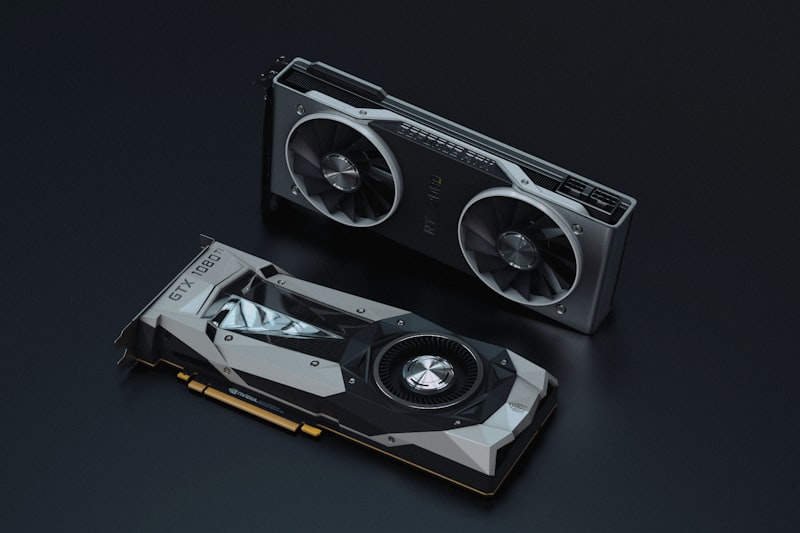 When Windows Update targets your GPU with an older or generic driver, your manually installed game-ready or performance driver gets silently replaced after every update cycle. The result is dropped frame rates, missing driver features, or crashes from an unexpected version mismatch.
How to Confirm Windows Is Downgrading Your GPU Driver
Before blocking anything, confirm that Windows Update is actually causing the downgrade. Open Device Manager, expand Display adapters, right-click your GPU, and select Properties. Note the driver version and date on the Driver tab. After the next Windows Update cycle, check again. If the version changed to something older without you installing anything, the downgrade is confirmed.
To identify the exact update responsible, go to Settings > Windows Update > Update History and look for a driver update entry with a timestamp matching when the version change happened. The update name usually contains the GPU vendor name and the driver version number that was pushed.
| Symptom | What Windows Update pushed | Result |
|---|---|---|
| Frame rates dropped after update | Older WHQL driver replaced game-ready driver | Lose performance optimizations |
| GPU features missing in control panel | Generic DCH inbox driver replaced OEM driver | Lose vendor-specific settings panel |
| Driver version keeps reverting | Update not blocked, reinstalls each cycle | Need wushowhide to stop recurrence |
Fix 1 – Block the Downgrade With wushowhide (All Editions)
Download the Show or Hide Updates tool from Microsoft – search for wushowhide.diagcab on Microsoft Support to find the download link. Run the tool, click Hide Updates, and it will list all pending driver updates waiting to install.  Select the GPU driver entry that keeps causing the downgrade and click Next. Windows Update will skip that specific driver in all future scans. The block stays active until you explicitly unhide it using the same tool. After hiding the update, reinstall your preferred GPU driver version from the manufacturer website directly. According to Microsoft’s official wushowhide guide, this is the supported method for blocking a specific driver update on Windows 10 and Windows 11.
Per Daniel O., who is a Systems Analyst at Accenture, “After every cumulative update my RTX driver kept rolling back three versions. Windows Update was overwriting the game-ready driver with a DCH inbox driver automatically. Had to block it with wushowhide to stop it.”
I had the same issue on my own desktop with an NVIDIA RTX card. After installing a fresh game-ready driver from the NVIDIA website, Windows Update replaced it with an older WHQL version within three days. Running wushowhide and hiding the specific NVIDIA driver update kept my preferred driver version stable for months. Without the block, the rollback just kept happening after every Patch Tuesday.
Fix 2 – Group Policy Block (Windows 11 Pro and Enterprise Only)
On Windows 11 Pro or Enterprise, you can also block the GPU driver through Group Policy for a more permanent solution. Open Device Manager, right-click your GPU, select Properties, go to the Details tab, and copy the Hardware IDs value. Then press Win + R, type gpedit.msc, and navigate to:
Computer Configuration > Administrative Templates > System > Device Installation > Device Installation Restrictions
Enable the policy Prevent installation of devices that match any of these device IDs and paste the hardware ID you copied. This method is more permanent than wushowhide and is better suited for managed business environments. Windows 11 Home users do not have access to Group Policy and must use wushowhide instead. See the How-To Geek guide on preventing automatic driver updates for more detail on both methods.
Frequently Asked Questions
Will hiding a GPU driver update in wushowhide block other Windows updates?
No. wushowhide blocks only the specific driver update you select. All other updates – security patches, cumulative updates, and feature updates – continue to install normally. You can unhide the driver update at any time by running wushowhide again and selecting Show Hidden Updates.
Why does Windows Update push an older GPU driver?
Windows Update uses hardware IDs to match drivers to devices. In some cases it matches your GPU to a generic inbox driver or an older WHQL-certified version instead of the newer game-ready or studio driver you installed manually. This is a known issue with NVIDIA and some AMD GPU models. Microsoft is working on improved driver targeting, but the fix is not yet fully rolled out.
Do I need to reinstall the GPU driver after using wushowhide?
If Windows Update already downgraded your driver before you ran wushowhide, yes – reinstall your preferred driver version from the GPU manufacturer website after hiding the update. If you caught it early and the driver has not been downgraded yet, hiding the update is enough.
Does this affect NVIDIA, AMD, and Intel GPUs the same way?
Yes, all three GPU brands can be affected. NVIDIA game-ready drivers are most commonly replaced by older DCH inbox drivers. AMD Adrenalin drivers can also be replaced by older WHQL versions. Intel Arc and integrated graphics are more commonly affected on OEM laptops where Windows Update pushes an OEM-locked driver instead.
Conclusion
The fastest fix when Windows 11 keeps downgrading your GPU driver is wushowhide – hide the specific driver update, then reinstall your preferred version from the GPU manufacturer website. Rolling back without blocking the update means the same downgrade will happen again after the next update cycle. If you are on Windows 11 Pro or Enterprise, the Group Policy block is a more permanent alternative. Check the driver version in Device Manager before and after every Windows Update to catch any future downgrades early.
Ryan holds a Computer Science degree and has over 20 years of hands-on experience with PC hardware, software, and driver troubleshooting. He is the author behind softwaredriverdownload.com, where he helps everyday users fix driver issues quickly and accurately. Ryan has personally tested most of the fixes on this site across a range of Windows 10 and Windows 11 machines.
Leave a Reply