Windows 11 printer driver missing after an update? Your printer disappears from Settings, shows as offline, or prints nothing with no error message. Windows 11 cumulative updates frequently break printer drivers — especially older models — by replacing OEM drivers with the built-in Windows Print Support App infrastructure.
I have fixed this on HP LaserJet and Canon PIXMA printers that disappeared after Windows 11 updates. The fix is always the same: download the full driver package from the manufacturer’s support page, not through Windows Update.
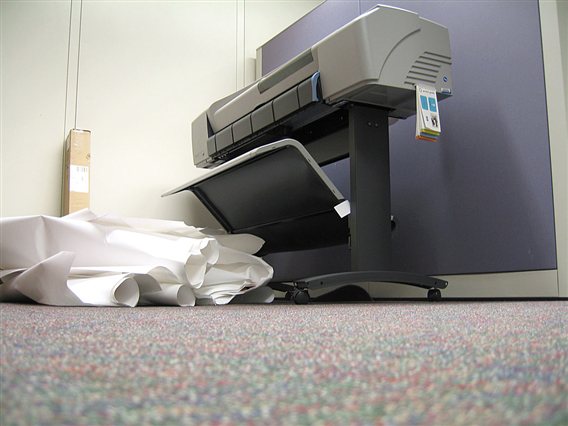
Why Windows 11 Updates Break Printer Drivers
Windows 11 introduced Windows Protected Print Mode and Print Support Apps (PSA) that replace legacy printer driver infrastructure. When updates transition the print subsystem, older third-party drivers stored in the driver store become incompatible with the new print spooler configuration.
Registry keys affected:
HKEY_LOCAL_MACHINE\SYSTEM\CurrentControlSet\Control\Print\Environments\Windows x64\Drivers— driver store registryHKEY_LOCAL_MACHINE\SYSTEM\CurrentControlSet\Services\Spooler— Print Spooler service settings
Fix 1: Restart Print Spooler
- Press Win + R → type services.msc
- Find Print Spooler
- Right-click → Restart
- Set Startup type to Automatic
Then: Settings → Bluetooth & devices → Printers & scanners. Check if your printer reappears.
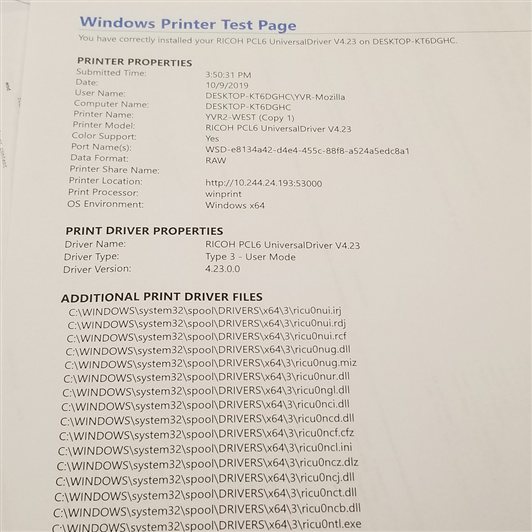
Fix 2: Remove and Reinstall the Printer
- Settings → Bluetooth & devices → Printers & scanners → select your printer → Remove
- Open elevated Command Prompt and stop the Print Spooler:
net stop spooler - Navigate to
C:\Windows\System32\spool\PRINTERS\and manually remove all files inside (do not remove the folder itself) - Restart the spooler:
net start spooler
This clears the print queue which can block reinstallation. Then reinstall from the manufacturer full driver package.
Fix 3: Download Full Driver Package From Manufacturer
Do not use “Add a printer” in Windows Settings — it installs a minimal driver. Download the full package:
- HP printers: HP Support — Printers
- Canon printers: Canon Support
- Epson printers: Epson Support
- Brother printers: Brother Support
Download the full driver and software package for your exact printer model and Windows 11 64-bit. Run the installer — it adds the printer automatically with all features.
Per Nur Hidayah, a managed IT services engineer at a printing company: “After every major Windows 11 update cycle, we run a printer driver audit. The update almost always breaks specific printer models. The manufacturer’s full package always fixes it — Windows Update’s minimal driver never gives us scan or fax features back.”
| Symptom | Fix |
|---|---|
| Printer shows as offline | Restart Print Spooler, toggle printer offline/online in Settings |
| Printer missing from Settings entirely | Reinstall from manufacturer full driver package |
| Printer shows but print jobs stuck | Stop spooler, clear spool folder contents, restart spooler |
| Driver installs but scan feature missing | Install full software suite from manufacturer, not just the driver |
Fix 4: Disable Windows Protected Print Mode
Windows 11 24H2 introduced Protected Print Mode which blocks some older unsigned drivers. If your printer driver refuses to install:
- Open Group Policy Editor (Win + R → gpedit.msc)
- Navigate to: Computer Configuration → Administrative Templates → Printers
- Find Configure Windows protected print → set to Disabled
- Restart Print Spooler and reinstall the driver
Frequently Asked Questions
My printer was working before the Windows 11 update — do I need a new printer?
Almost certainly not. Windows 11 updates frequently break printer drivers but the hardware is fine. Reinstalling the manufacturer’s driver package restores full functionality in most cases.
The printer reinstalls but disappears again after the next update — how do I prevent this?
Block driver updates: Settings → System → About → Advanced system settings → Hardware → Device Installation Settings → No. Also check if your printer manufacturer has a Windows 11-certified driver and switch to it.
Shared network printer stopped working after Windows 11 update — what changed?
Windows 11 updates sometimes change SMB printer sharing security settings. Re-add the network printer using its server path format.
Print Spooler crashes immediately on start — what’s wrong?
A corrupted driver in the spool folder can crash the spooler on start. Stop the spooler, manually clear the contents of C:\Windows\System32\spool\drivers\x64\3\ (backup first), restart spooler, then reinstall the driver.
Can I use a printer from Windows 10 on Windows 11 without updating the driver?
Sometimes, for basic printing. For full features like scan, fax, and ink monitoring, always use the manufacturer’s Windows 11 package.
Conclusion
Windows 11 printer driver missing after an update is one of the most common post-update issues. Restart the Print Spooler, clear the print queue, then reinstall using the manufacturer’s full driver package — not Windows Update’s minimal driver. If the driver refuses to install, disable Windows Protected Print Mode in Group Policy. Hardware replacement is almost never needed for this issue.
Ryan holds a Computer Science degree and has over 20 years of hands-on experience with PC hardware, software, and driver troubleshooting. He is the author behind softwaredriverdownload.com, where he helps everyday users fix driver issues quickly and accurately. Ryan has personally tested most of the fixes on this site across a range of Windows 10 and Windows 11 machines.
Leave a Reply